 PluBIM Help

Simple mode
Check whether the elements reference the right level according to the project rules; surfaces without a matching level are skipped.
- Ribbon group
- Quality
- Version
- PluBIM 1.5.0
In Simple mode, LevelGuard skips floors and roofs at whose height there is no active level with a matching reference type. That way gratings, ramps or shaft covers usually do not disturb the check, without having to ignore them one by one. To also check whether all required levels are defined: Detailed mode.
When to use it
- Whenever you want to check whether the elements reference the right level according to the project rules, for example before an issue.
Requirements
As in the overview: active floor plan, linked architectural model, level parameters and configured project settings.
Check reference levels (Simple)
In the ribbon, click PluBIM › Quality › LevelGuard.
Under MODEL, choose the linked architectural model.
Under RUN SETTINGS, choose Simple. Optionally:
- Min. length: shorter elements are not checked (0.50 m by default).
- Selection only: check only the pipes, ducts and cable trays selected in Revit beforehand.
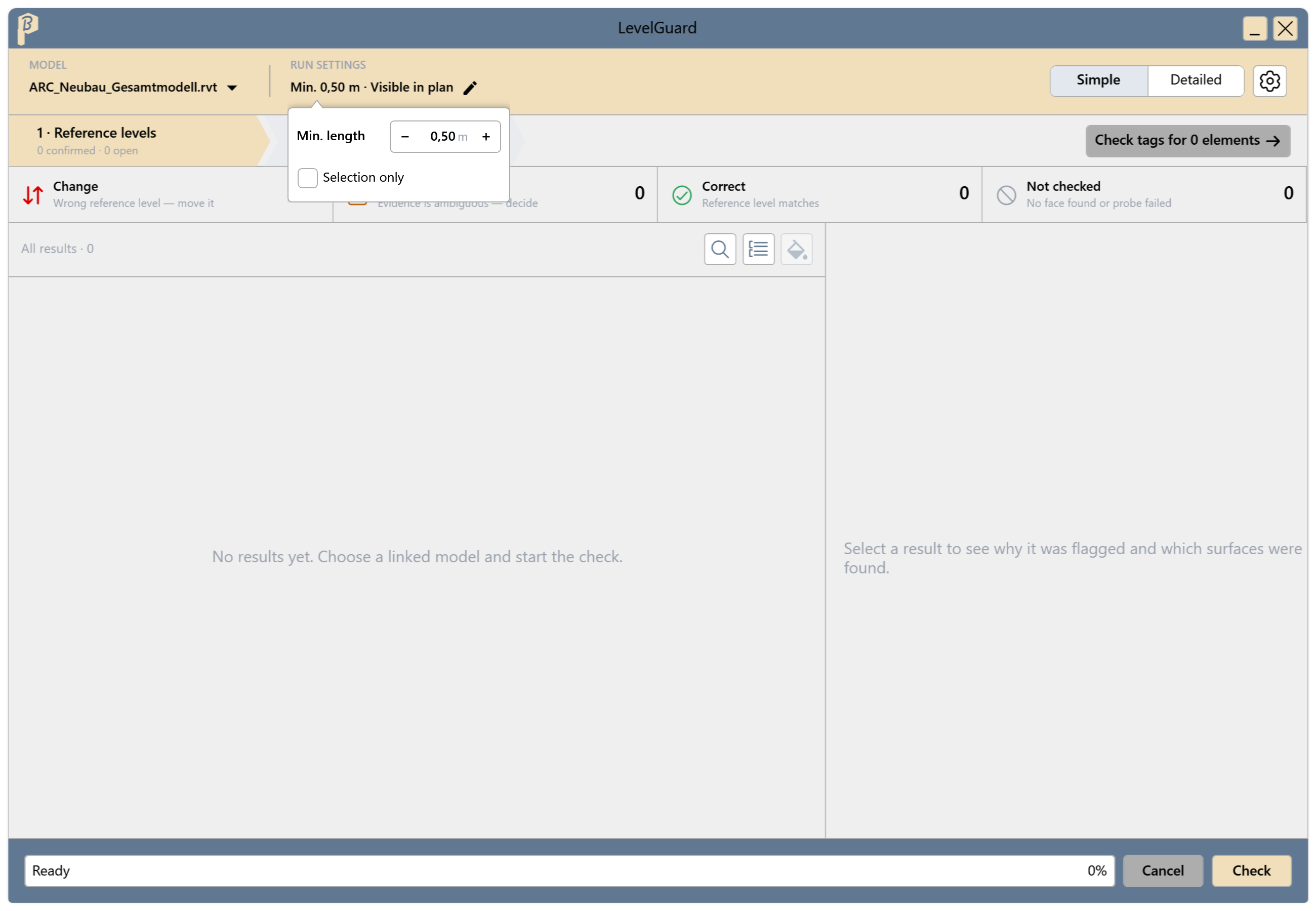
Fig. 1 · LevelGuard in Simple mode Click Check. The progress shows “Checking … of … elements…”.
Go through the results, best from Change through Review to Not checked. Click a result to see Current and Proposed on the right, and the SECTION with the floors and roofs found above and below the element.
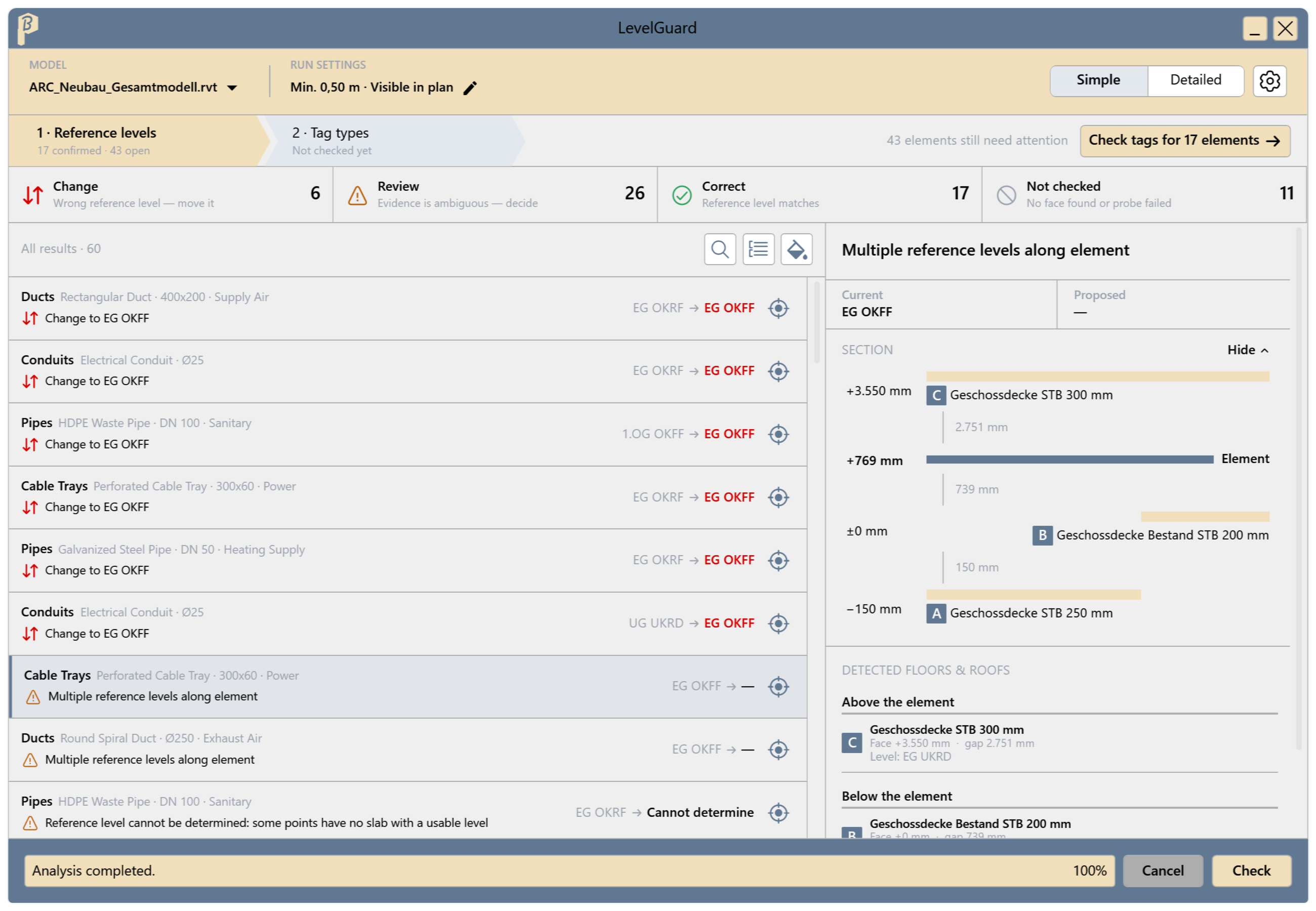
Fig. 2 · Result with Current, Proposed and SECTION Move the elements to the proposed level in Revit and click Check again.
Optionally continue with 2 · Tag types.
All elements are under Correct or deliberately left under Review.
What “skipped” means
- A surface is only skipped if there is no active level of the matching reference type at its height: OKRF or OKFF for the slab below, UKRD for the slab above.
- If only such a surface is below or above an element, LevelGuard reports New level at …: a level is missing at this height, or the surface is not part of the structure.
- If a level is missing in the project settings, Simple mode may skip a real slab. Then turn on the level or check in Detailed mode.
Common problems
Many results under “Not checked”
No floor or roof was found along these elements, e.g. outside the building or because the floors are missing in the linked model. Check that the right model is selected.
“Select at least one pipe, duct, or cable tray element before starting …”
Selection only is on, but nothing suitable is selected in Revit. Select elements or turn off Selection only.