 PluBIM Help
CheckPoint
Select and activate the workset before modeling.
- Ribbon group
- Quality
- Version
- PluBIM 1.5.0
When you open a workshared model, CheckPoint asks which workset you are working in and makes it the active workset. New elements land in the right workset from the start.
When to use it
- In workshared models, so that nobody models in the wrong workset by mistake.
- CheckPoint runs in the background; the button in the ribbon only turns it on or off.
Requirements
- CheckPoint is on: the ribbon button shows
 .
- The model is workshared and is not opened detached.
Choose the workset when opening
Open a workshared model. After opening, the CheckPoint window appears.
Under Worksets, choose the workset you are working in. The list shows the model's worksets in alphabetical order. If the model was opened before, the workset chosen last time is preselected.
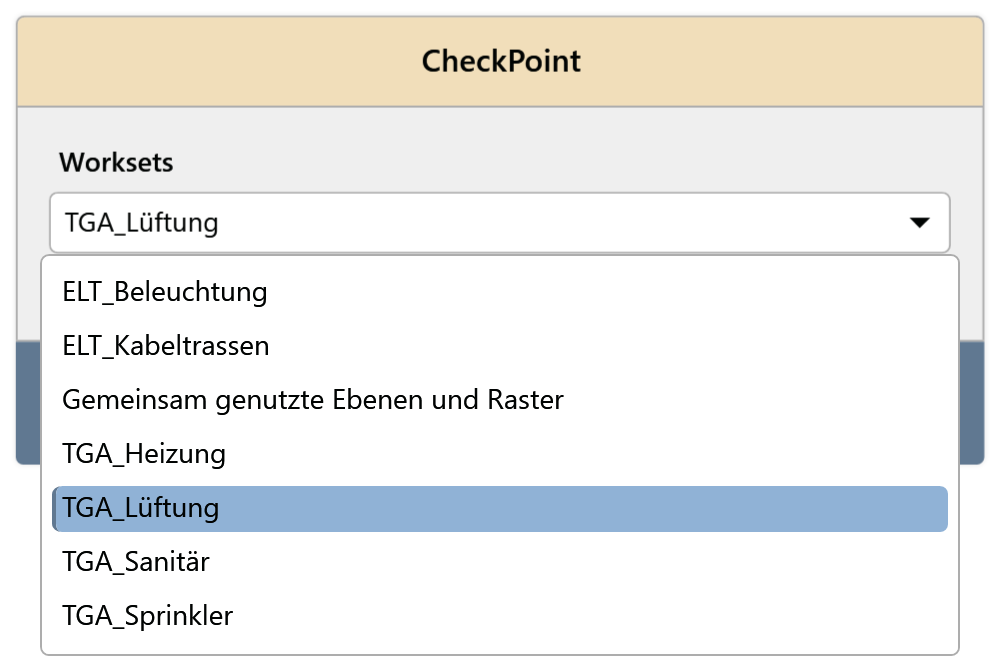
Fig. 1 · The CheckPoint window Click Select.
The chosen workset is the active workset, shown in the Revit status bar. CheckPoint remembers the choice for this model and suggests it again the next time you open it.
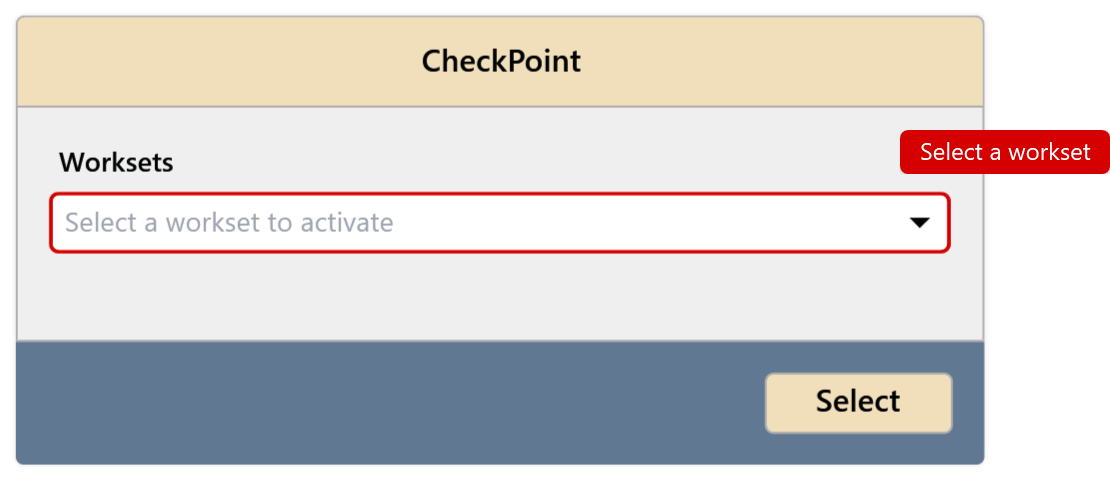
The window cannot be closed without a choice. Without one, the field is marked red (Fig. 2).
Turn CheckPoint on and off
In the ribbon, click PluBIM › Quality › CheckPoint.
The icon shows the new state:
- on: CheckPoint asks the next time you open a model.
 off: CheckPoint no longer asks.
The setting is kept after Revit restarts.
Limitations
- Workshared models only; for other models and models opened detached, the window does not appear.
- CheckPoint does not ask during NightShift jobs.
- The choice is saved per model and per user.
Common problems
“Select a workset”
Select was clicked without a workset. Choose a workset from the list.
The window does not appear when opening
CheckPoint is off, the model is not workshared, or it was opened detached. Turn CheckPoint on in the ribbon and open the model again.
“Could not read the checkpoint settings”
The saved choice for the model could not be read. You can still choose the workset; it is just not preselected. If the message keeps appearing, contact support.