 PluBIM Help

JobManager
Check NightShift jobs and their state in Windows Task Scheduler.
- Ribbon group
- Automation
- Version
- PluBIM 1.5.0
When to use it
| You want to … | How |
|---|---|
| Check whether a NightShift or ExportDesk job ran successfully | Check status and history |
| Start a job now without waiting for its scheduled time | Run a job now |
| Change the time or frequency, or suspend a job | Change or pause the schedule |
| Use a job on another computer | Export and import a job |
| Create a new job | In NightShift |
The JobManager window
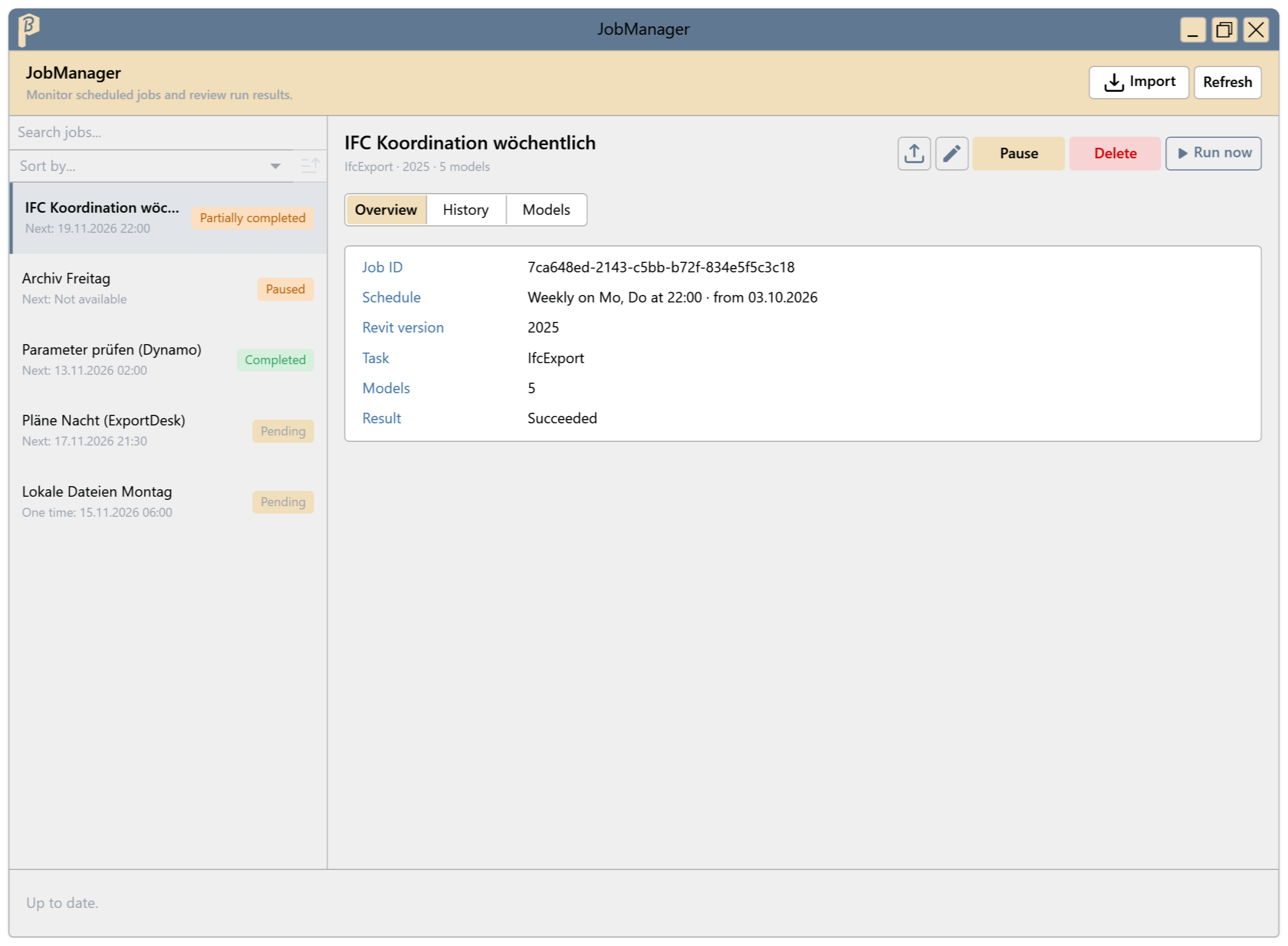
- On the left, the job list. Search jobs... finds jobs by name, Revit version or task. Sort by... sorts by Name, Next run, Status or Model count; the arrow next to it reverses the order.
- On the right, the details of the selected job in the Overview, History and Models tabs.
- At the top right, Import and Refresh.
- For the selected job: the arrow icon (Export), the pencil (Edit schedule), Pause or Resume, Delete and Run now.
The list shows the state when the window was opened or last refreshed with Refresh. It does not update by itself.
Check status and history
In the ribbon, click PluBIM › Automation › JobManager.
Select a job in the list. The list shows the status and next run of each job (“Next: …”). The Overview tab shows Job ID, Schedule, Revit version, Task and the number of Models.
Open the History tab. Each run shows Started, Trigger (Scheduled or Manual), Result and Duration. Possible results: Succeeded, Partially succeeded, Failed, Skipped and Running.
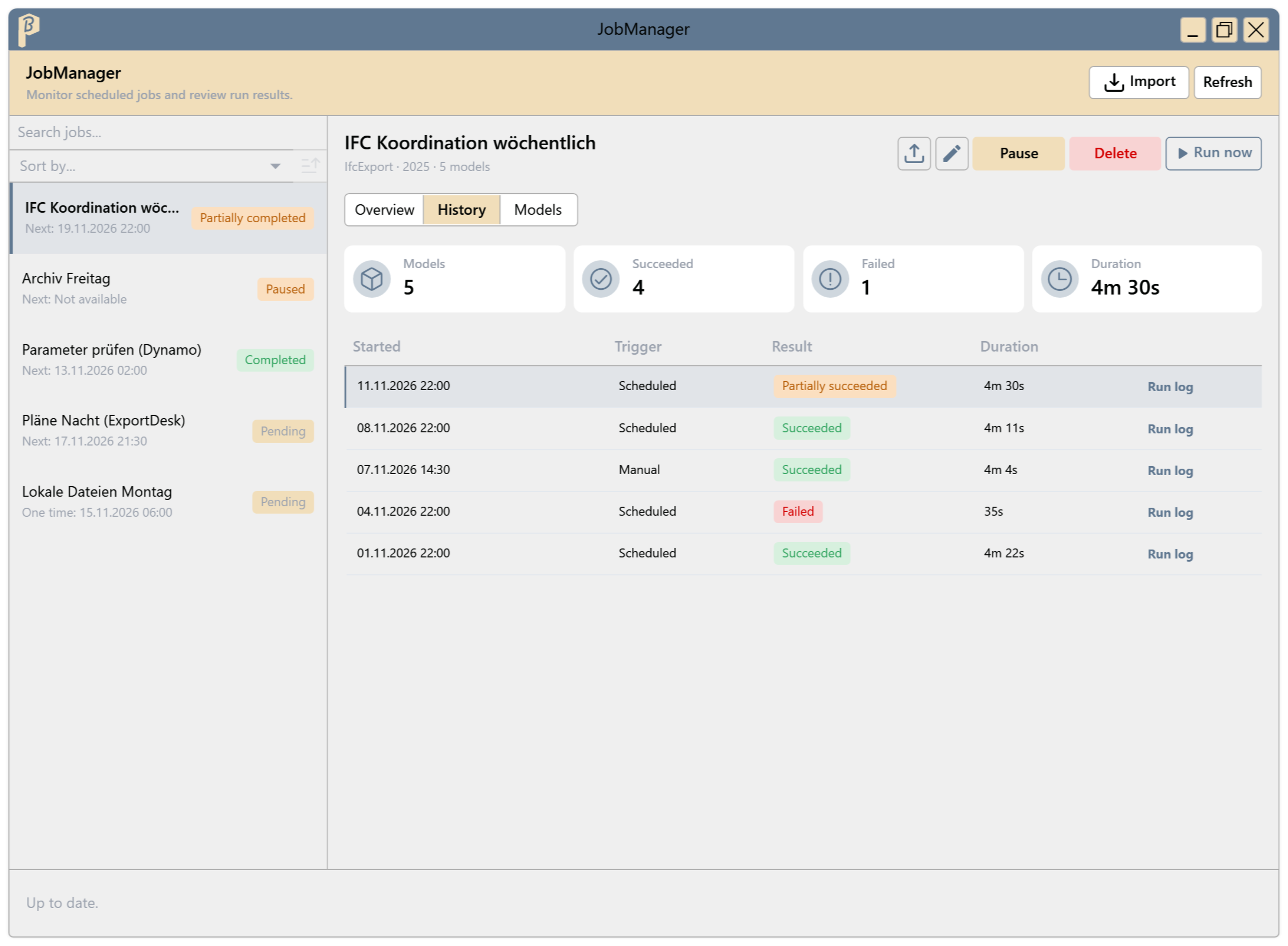
Fig. 2 · History tab Open the Models tab. It shows each model of the selected run with its result. Click a model to expand its details, depending on the action for example exported or failed views, run or failed scripts, or the archive path.
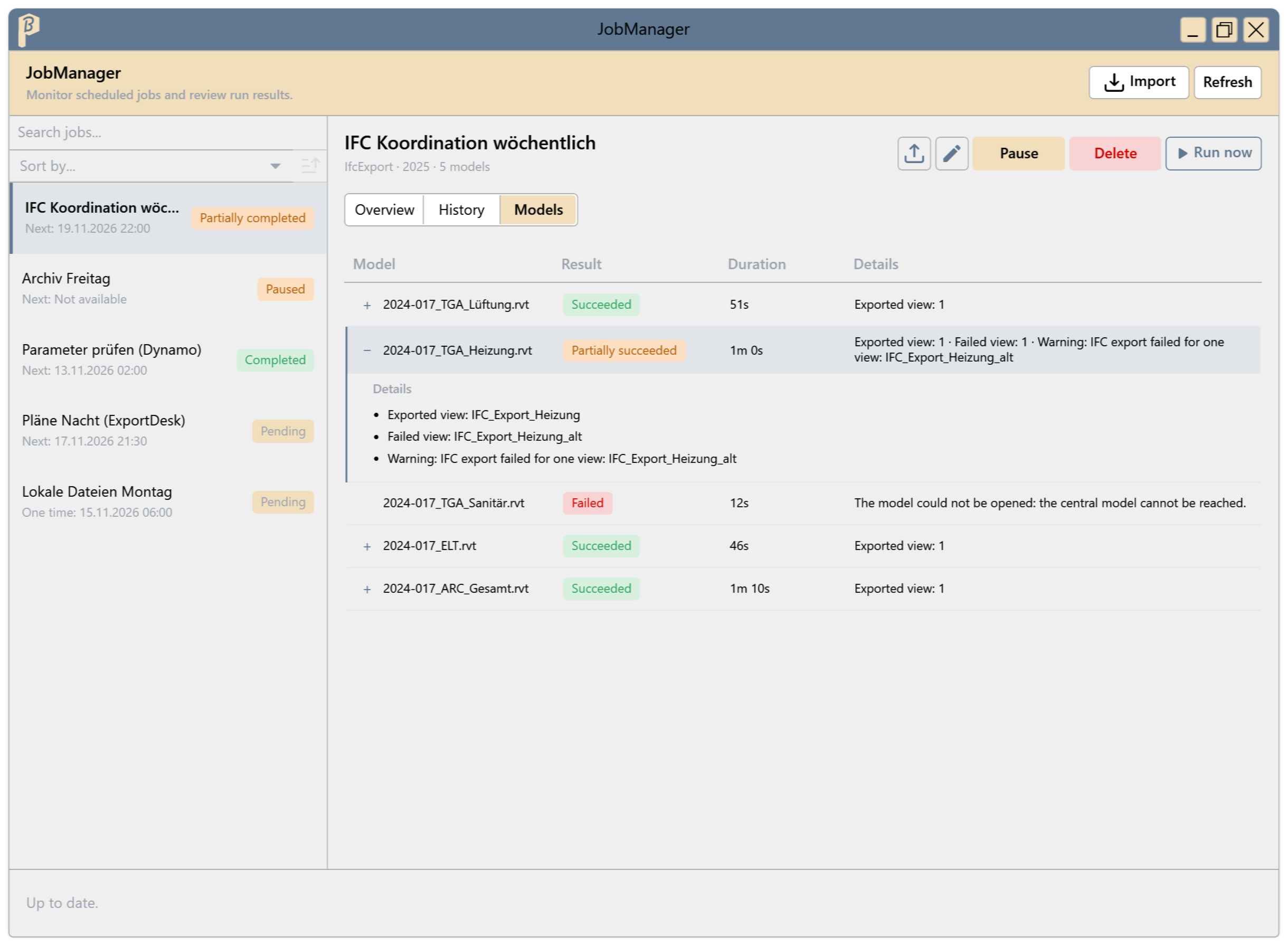
Fig. 3 · Models tab, one model expanded At the end of a run's row, click Run log. The log opens on the right of the window; the × closes it. Narrow it down with the filters All, Info, Warnings, Errors and Debug; the number on each filter is the number of entries.
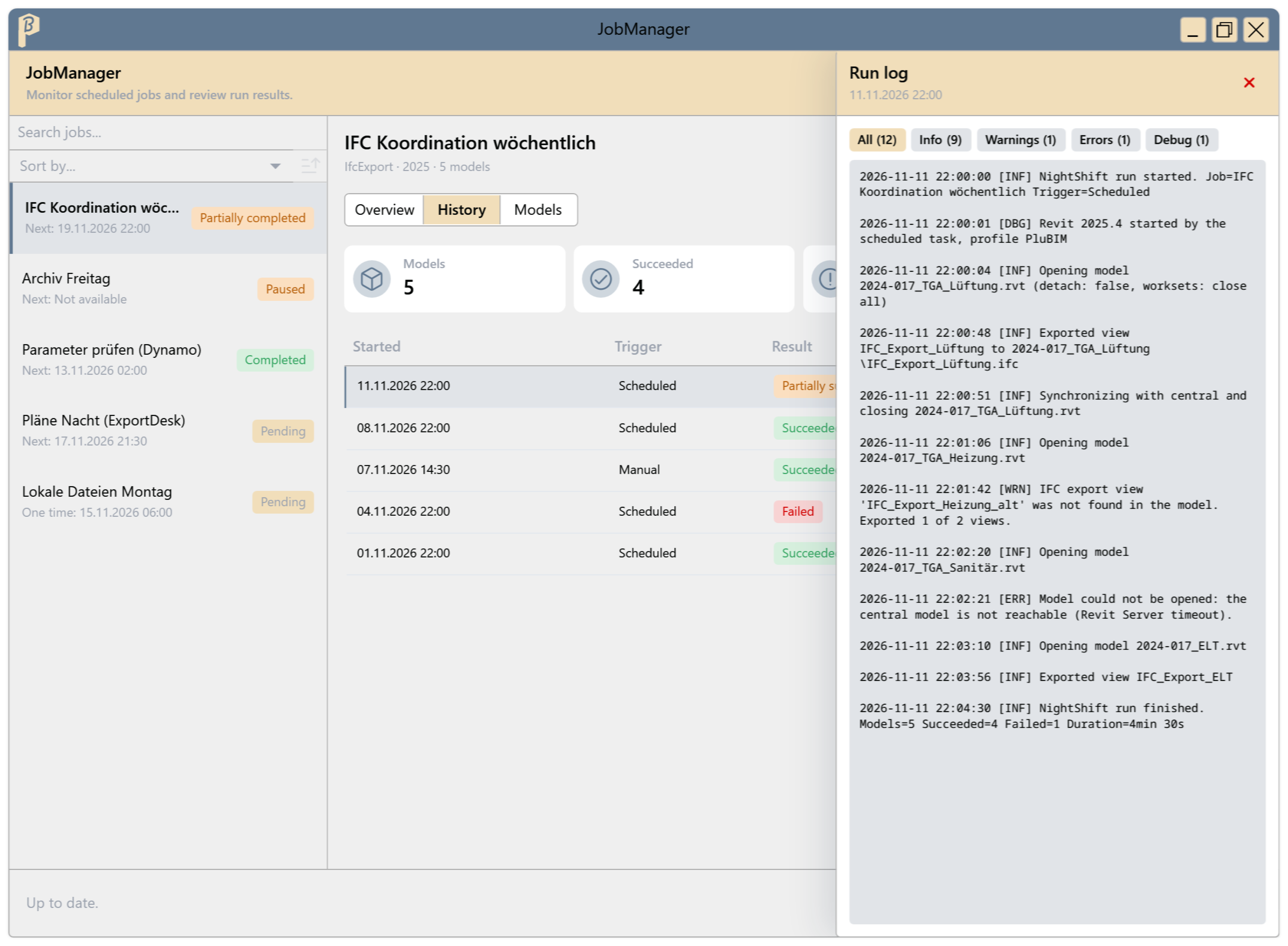
Fig. 4 · Log of a run
For each run you can see how many models Succeeded or Failed, and why.
Run a job now
Select the job and click Run now. This only works for an active, healthy job that is not running.
The status shows “Launch pending”, then “Job “…” is running in Revit.” Click Refresh to update the state. Revit starts just as at the scheduled time; what happens is described under What happens during a run.
The run appears under History with its result and duration.
Change or pause the schedule
Select the job and click the pencil (Edit schedule). Edit schedule opens on the right.
Adjust frequency, date and time and click Save. Confirm “Change schedule?” with Change. Cancel with unsaved changes asks “Discard schedule changes?”.
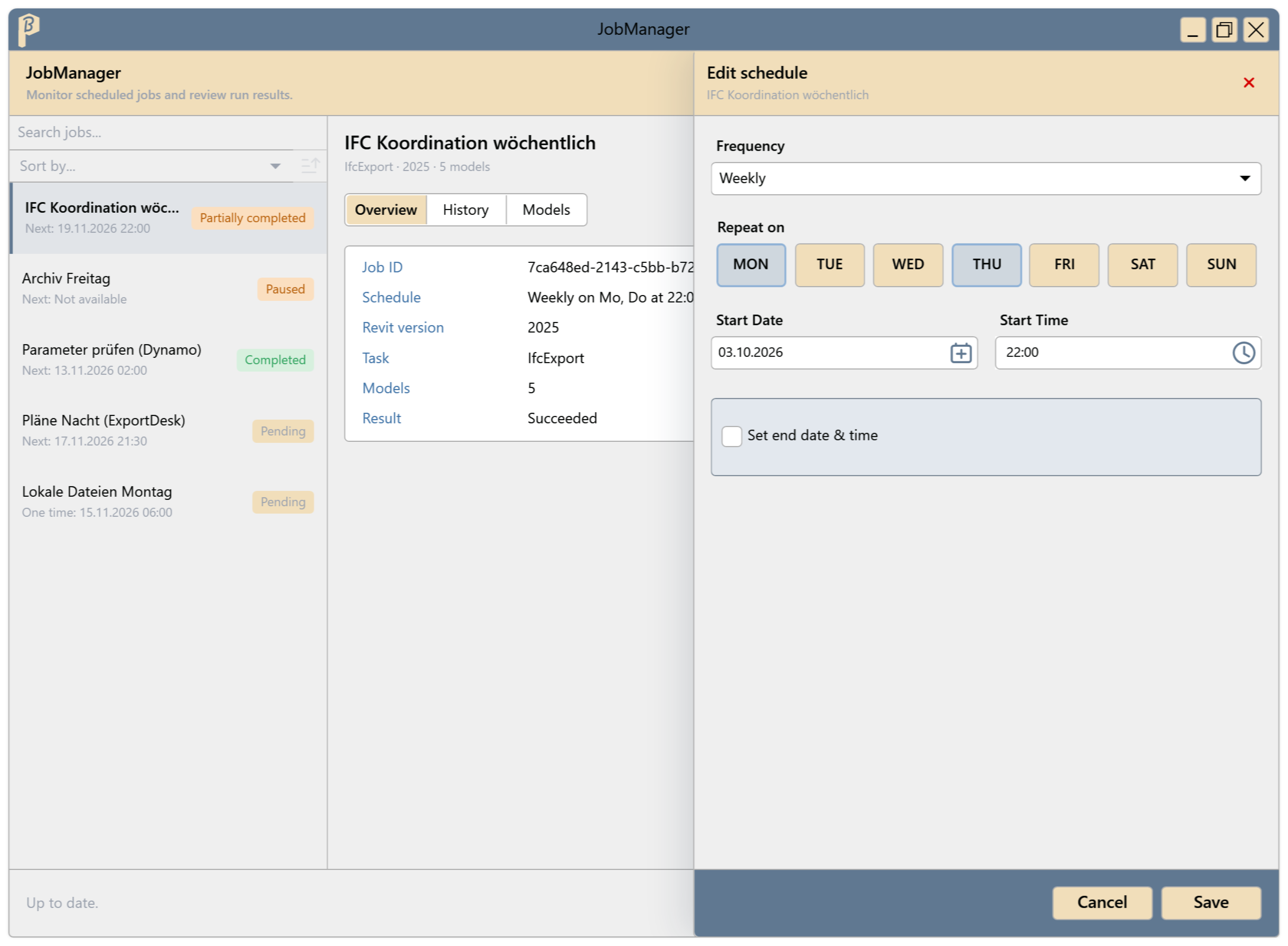
Fig. 5 · Edit schedule To suspend the job, click Pause: scheduled runs no longer take place, the schedule stays saved. Resume picks it up again. A run in progress is not affected. A paused job can only be started with Run now after Resume.
“The schedule was updated.” The next run shows the new time.
Export and import a job
Select the job and click the arrow icon (Export). The job is saved as a .json file.
On the other computer, click Import and choose the .json file.
In the Import job window, check the details: name, action, number of models, schedule and next run. If the schedule is in the past, “Update the job schedule and set a future run.” appears and you can adjust the schedule directly in the window.
Click Create job.
“The imported job was created and enabled.” The job appears in the list and is registered in Windows Task Scheduler.
Limitations
Delete removes the scheduled Windows task and all job files, history and logs. This cannot be undone.
- Running jobs cannot be deleted.
- On import, JobManager checks whether the job's files and folders can be reached on this computer: Revit, Dynamo scripts, IFC settings files, export and archive folders. If something is missing, the job is not created.
- New jobs are created in NightShift.
Common problems
“NightShift jobs could not be read from Windows Task Scheduler.”
Check that the Task Scheduler service is running and that your account can access the PluBIM\NightShift task folder. Then click Refresh.
Status “Launch failed or unobserved”
Check the log and diagnostics. Often the job's configuration or launch file is missing.
“Update the job schedule and set a future run.”
The end or start is in the past. Set a new time with Edit schedule.
“A job with this name already exists.”
On import, there is already a job with this name. Delete the existing job or export the file with a different job name.
“The … was not found: …” on import
A file or folder of the job is missing on this computer, for example a Dynamo script, an IFC settings file or the Revit version. Provide the file or install Revit and import again.
“The selected file is not a valid NightShift job.”
The .json file does not come from Export or was changed. Export the job again.
“This job cannot be deleted …”
The job is running. Wait for it to finish, click Refresh and delete again.