 PluBIM Help

Run Dynamo
Automatically run Dynamo scripts for the selected models.
- Ribbon group
- Automation
- Version
- PluBIM 1.5.0
When to use it
- Recurring checks or data maintenance with Dynamo should run at night.
Requirements
- The Dynamo scripts (.dyn) run without user input.
Set up the action
In NightShift, in the Action step, choose Run Dynamo.
Under Dynamo Scripts to Run, click Add Dynamo Files and select the .dyn files.
Check the order: the scripts run in the order of the list, shown by the number in front of each script. Move them up or down with the arrows, remove them with the trash can.
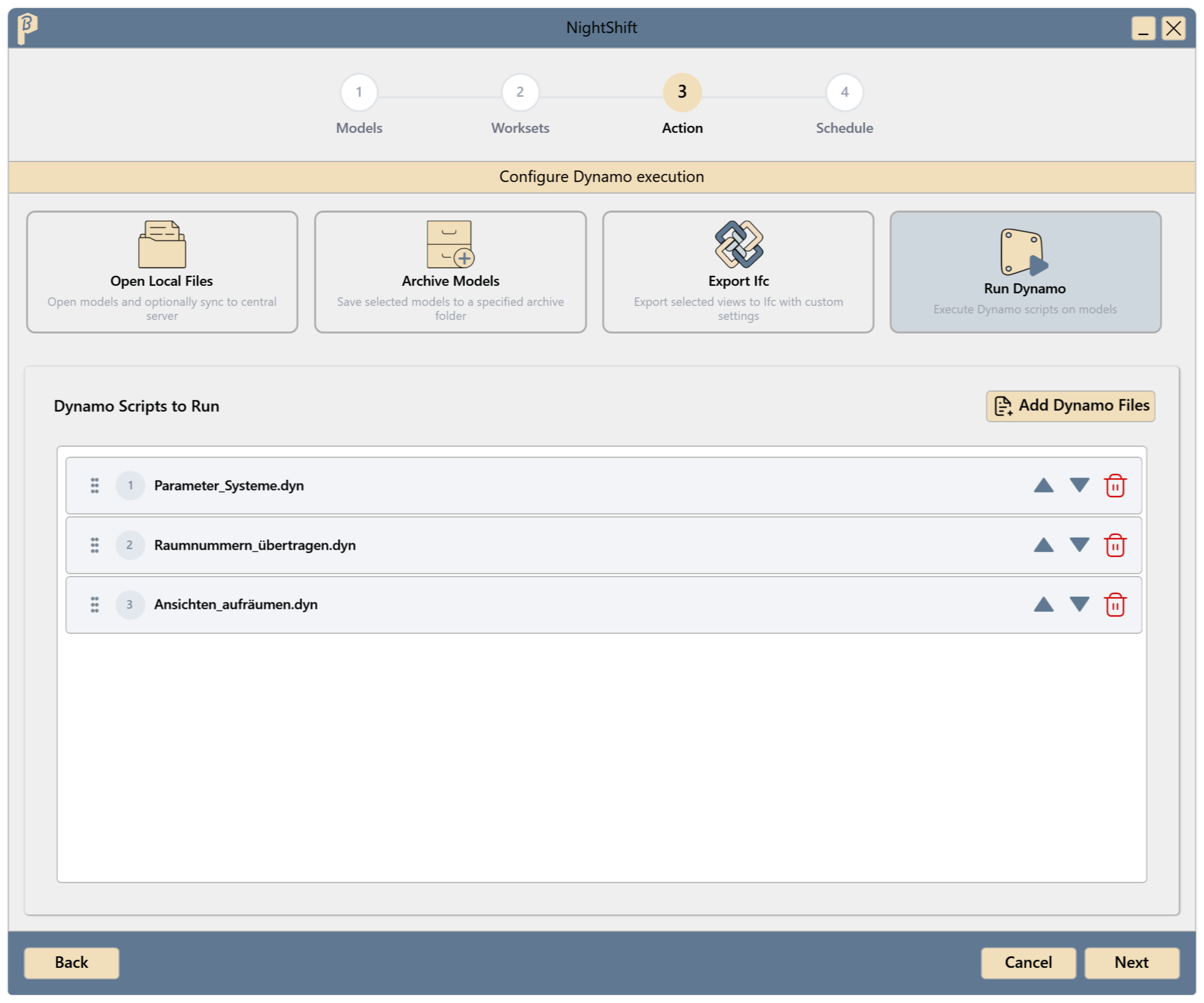
Fig. 1 · Dynamo Scripts to Run Continue with the Schedule step and save the job (Create a job).
At the scheduled time, the scripts run one after another in each model. NightShift then saves the model and syncs it with the central model. In the JobManager, the history shows the run and failed scripts per model. If a script fails, the following ones still run.
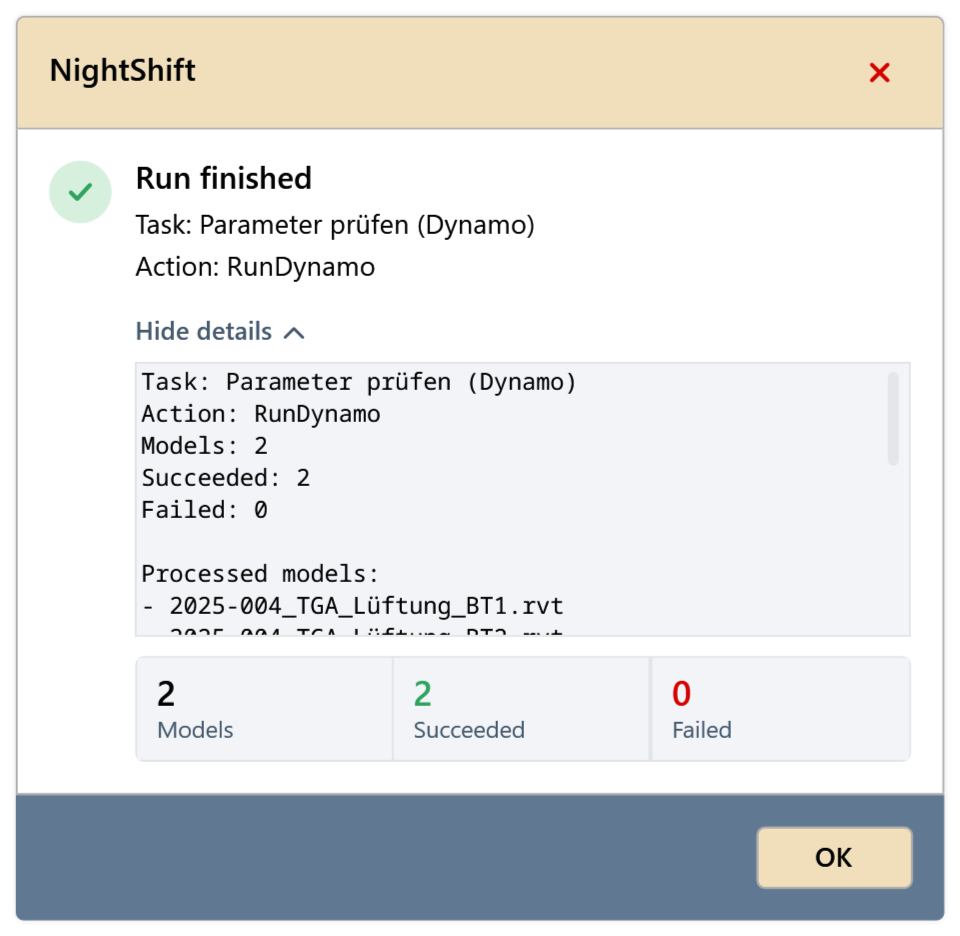
Result of the run
After each run, NightShift shows a summary. Show details lists the scripts run per model and, if any failed, the failed scripts.
Common problems
“Select at least one Dynamo script.”
Add at least one .dyn file.