 PluBIM Help

RoomData
Assign room information to selected model elements.
- Ribbon group
- Data
- Version
- PluBIM 1.5.0
RoomData writes the room number, room name and level of the room an element sits in into the element's parameters. This applies to all elements of the chosen categories in the model.
When to use it
- Elements should get the room number, room name and level of their room.
- After changes to the model or the rooms, to bring the values up to date again.
Requirements
- The chosen categories have the parameters MP_400_Raumnummer, MP_400_Raumname and MP_400_Ebene.
- The model or a loaded linked model contains spaces or rooms.
- The linked model with ceilings, floors and roofs (usually the architectural model) is loaded and not hidden by default in 3D views. Only then does RoomData assign the elements to the right rooms.
Assign room data
In the ribbon, click PluBIM › Data › RoomData.
Under Room Source, choose Spaces or Rooms.
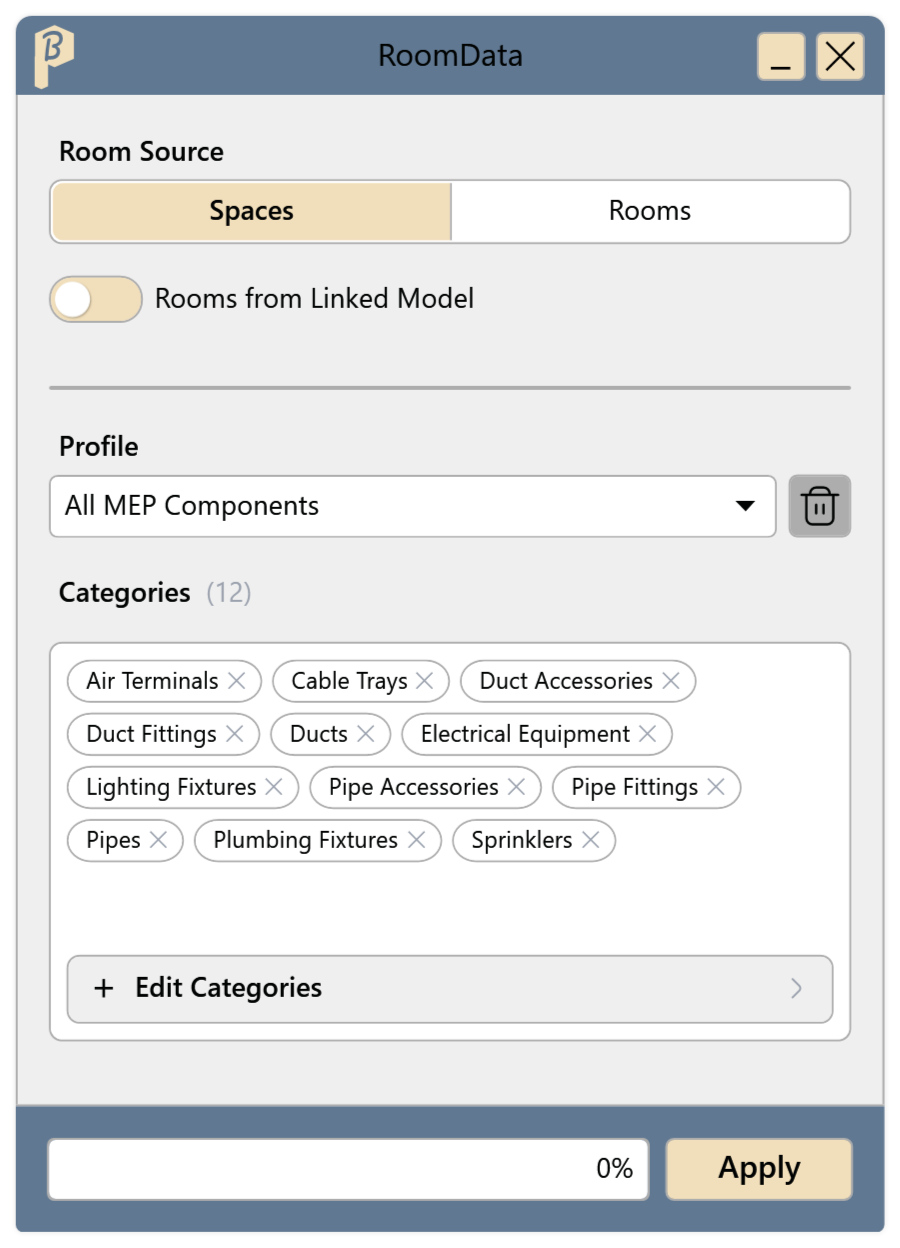
Fig. 1 · The RoomData window If the rooms are in a linked model, turn on Rooms from Linked Model and choose the model under Linked Model.
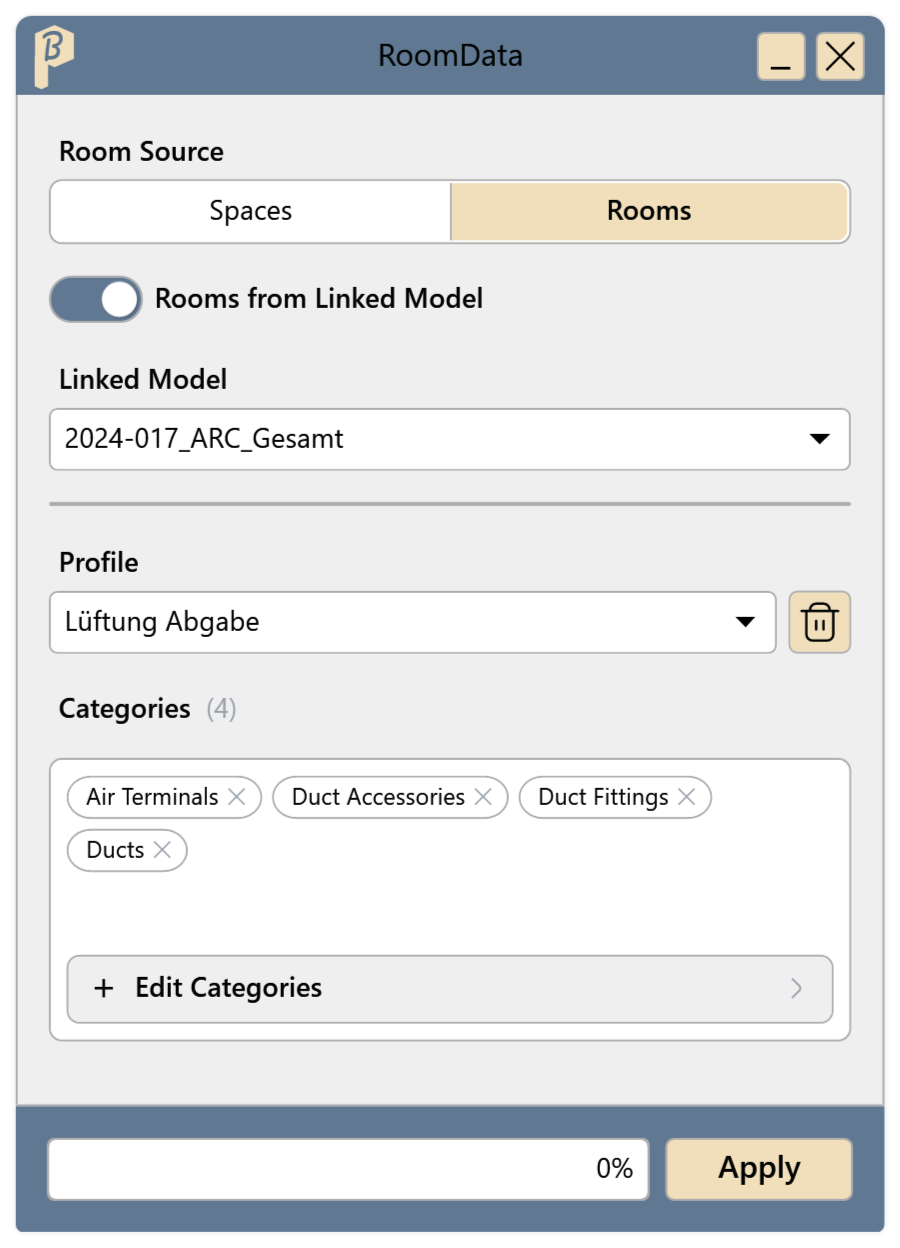
Fig. 2 · Rooms from a linked model Choose a profile under Profile. Its Categories are listed below; remove single ones with ✕, add more with Edit Categories (see Categories and profiles).
Click Apply. The progress is shown at the bottom of the window.
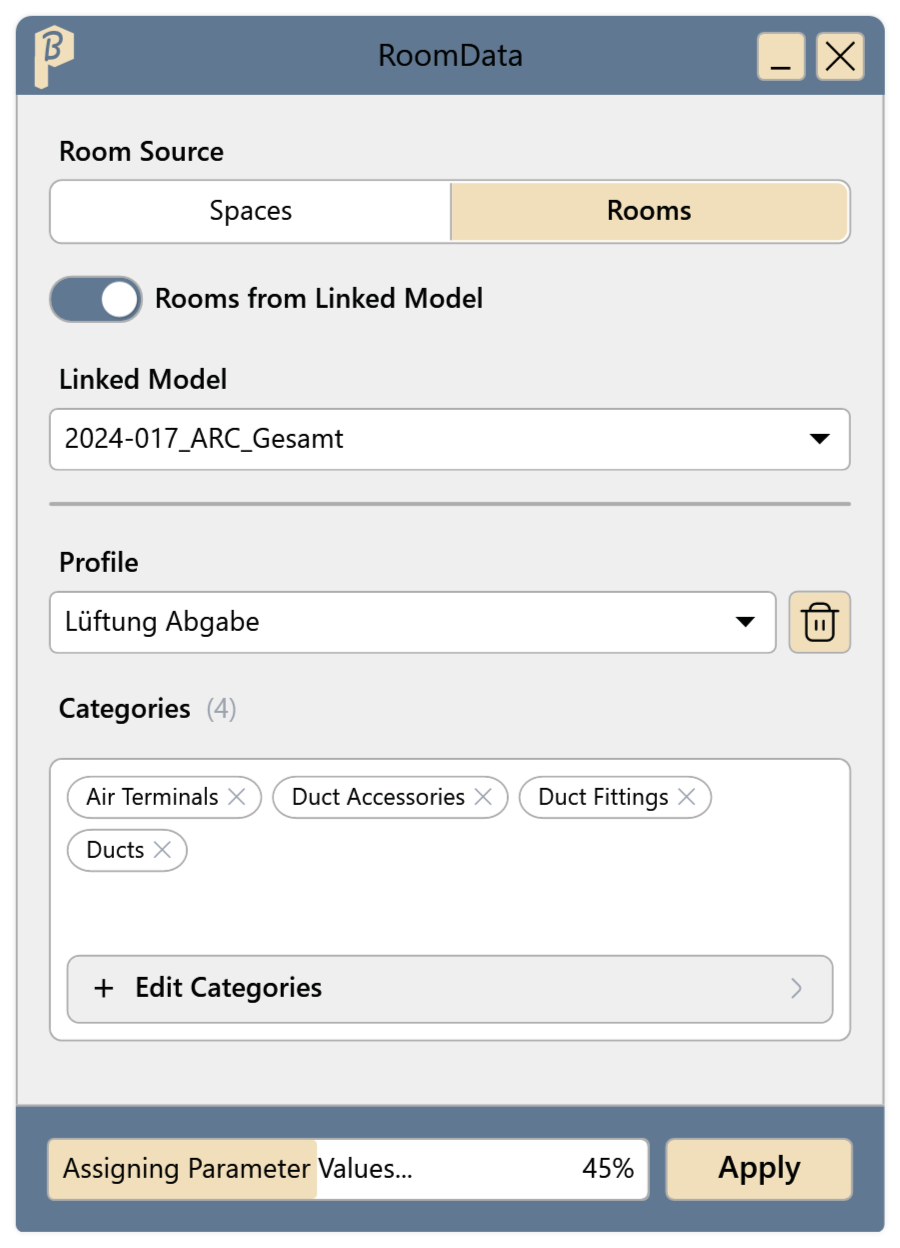
Fig. 3 · RoomData is running
The elements of the chosen categories contain the room number, room name and level of their room. Only changed values are written.
Fire dampers get the room on their operating side.
Categories and profiles
A profile is a saved selection of categories. Three standard profiles are included: All MEP Components, Mechanical Components and Electrical Components.
Click Edit Categories. The Category Selection window opens.
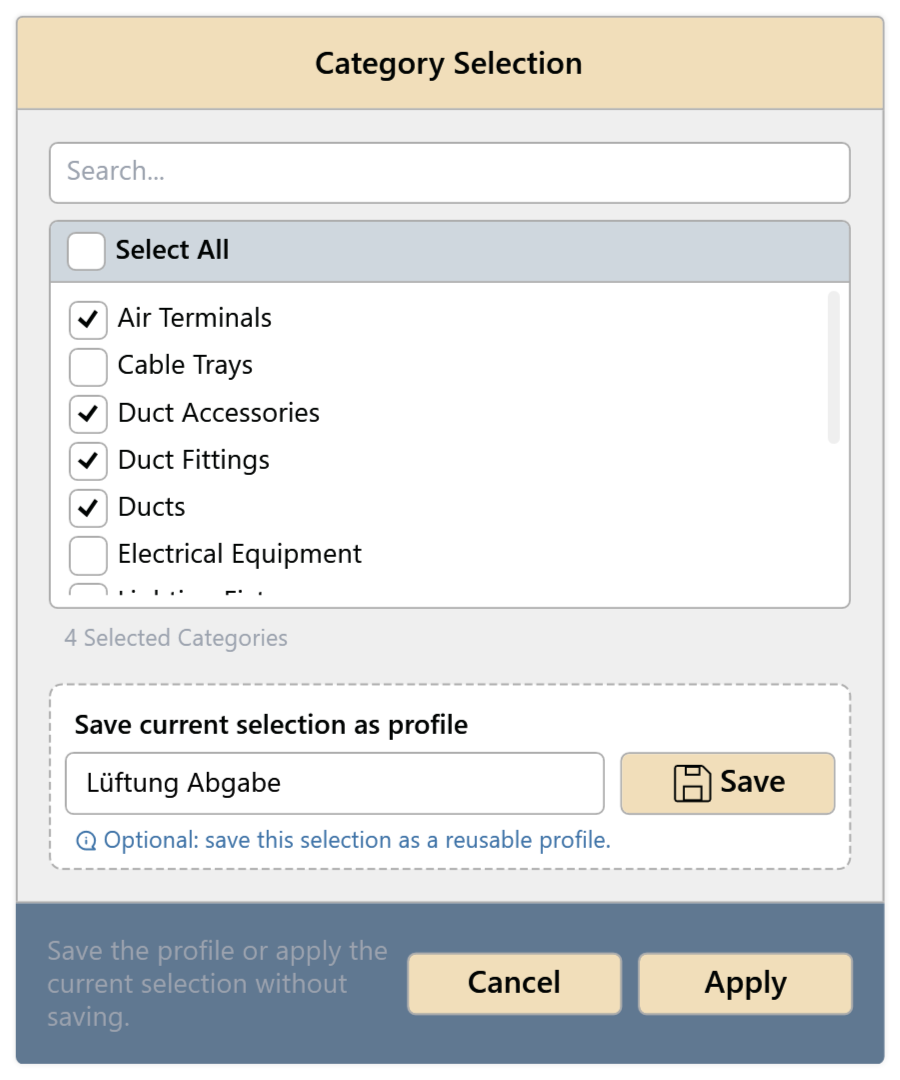
Fig. 4 · Category Selection Check the categories. The search box filters the list; Select All checks all categories shown.
Either click Apply: the selection applies to this run and is not saved.
Or enter a Profile name under Save current selection as profile and click Save: the selection is saved as a profile and used right away.
The saved profile is available under Profile from now on. Your own profiles can be deleted with the button next to Profile; standard profiles cannot.
Skipped elements
In workshared models, RoomData cannot change elements that are owned by someone else or not up to date with the central model. All other elements still get their values. Afterwards, RoomData shows the skipped elements in a list:
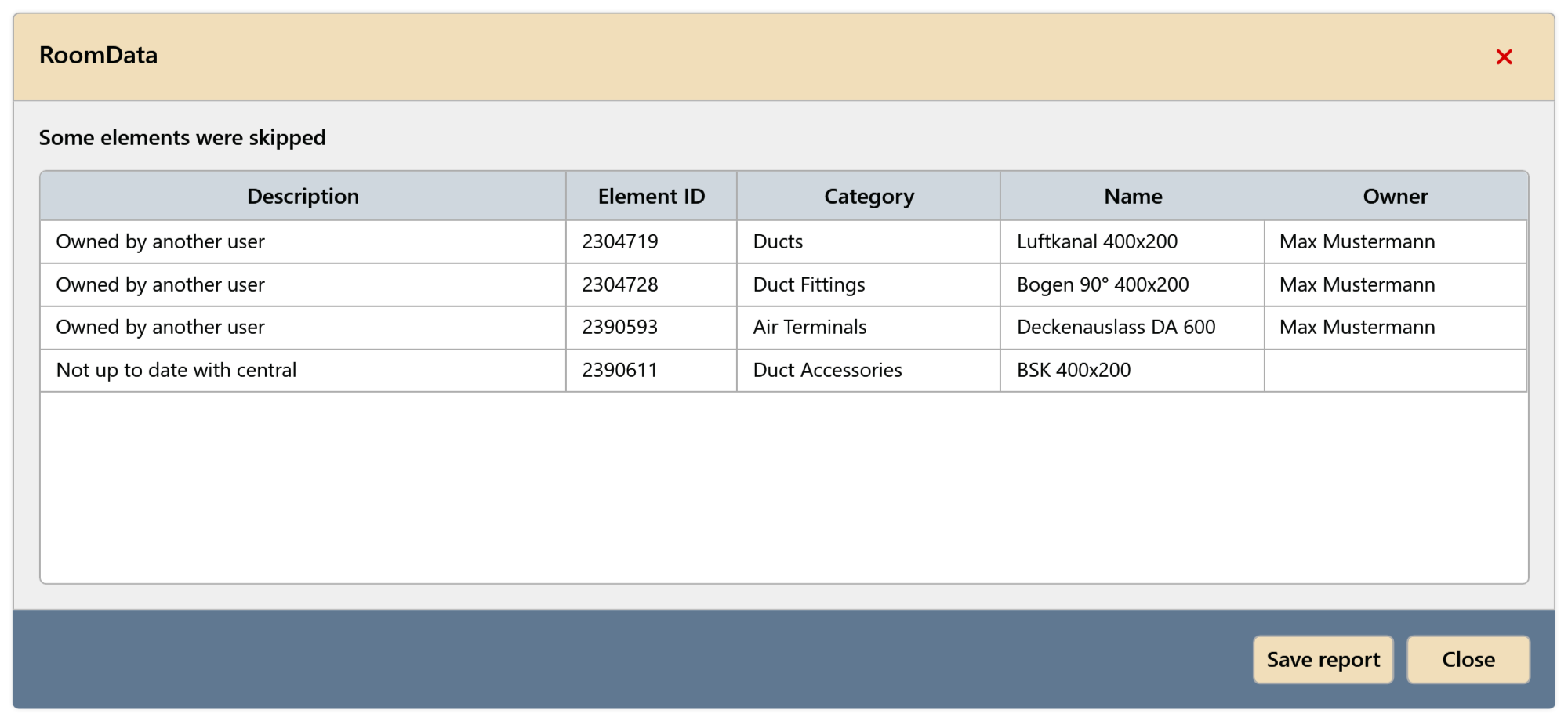
- Description: the reason, e.g. “Owned by another user” or “Not up to date with central”.
- The element's Element ID, Category, Name and Owner.
- Save report saves the list as an Excel file, e.g. to pass it on to the owners.
Ask for the elements to be released or synced, and run RoomData again.
Limitations
- Elements outside rooms get no values.
- Elements in linked models are not changed.
Common problems
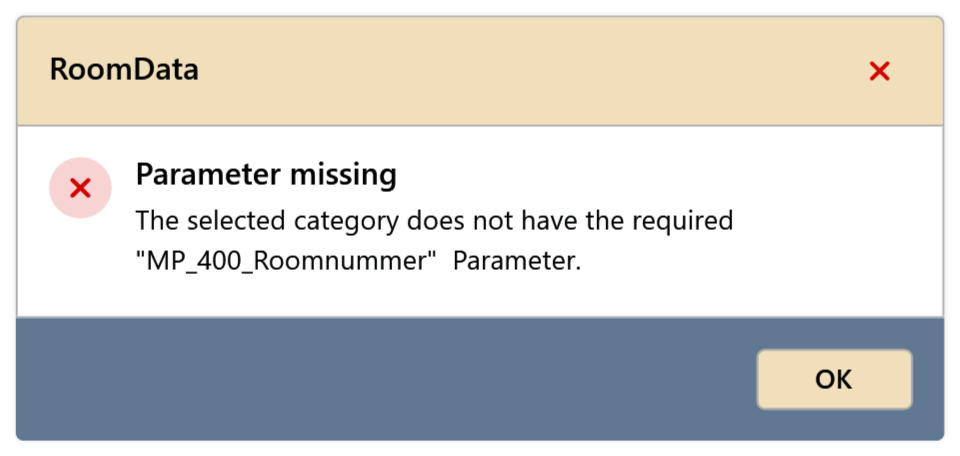
“Parameter missing”: “The selected category does not have the required … Parameter.”
One of the parameters MP_400_Raumnummer, MP_400_Raumname or MP_400_Ebene is missing. Have the parameter added to the category or deselect the category. Nothing was changed.
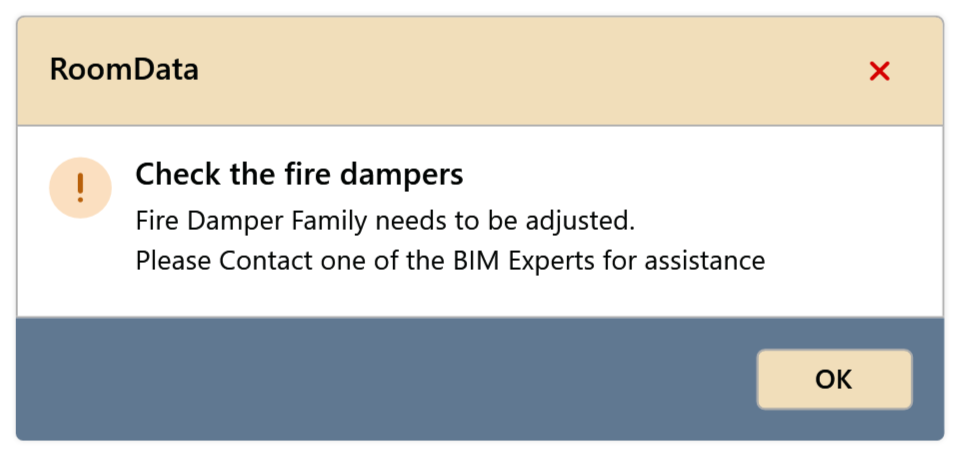
“Check the fire dampers”
A fire damper family has no operating side, so its room cannot be determined reliably. Contact support; the family needs to be adjusted.
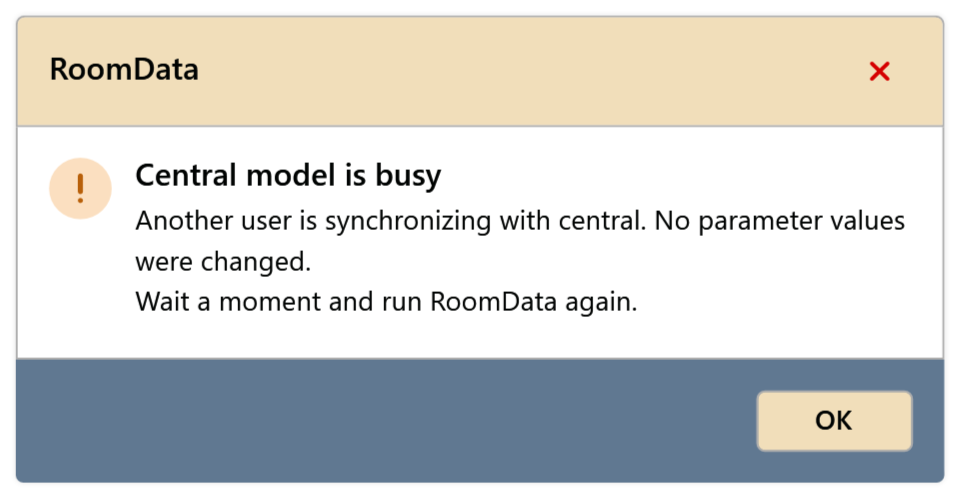
“Central model is busy”
Someone is syncing with the central model right now. Nothing was changed. Wait a moment and click Apply again.
“There are no Rooms in the selected Model.” / “There are no Spaces in the selected Model.”
The chosen room source contains no rooms. Choose the other room source or another linked model.
“No element was found in the selected categories.”
The model contains no elements of these categories. Check the category selection.
“Select at least one category.” / “Select a linked model.”
Apply was clicked without a category, or with Rooms from Linked Model on but no model chosen.
“Please enter a profile name.”
Save was clicked without a Profile name. Enter a name or use Apply.