 PluBIM Help

MyClashes
Finds all clashes caused by the current user.
- Ribbon group
- Quality
- Version
- PluBIM 1.5.0
MyClashes checks your runs (ducts, pipes, cable trays, conduits) for clashes with other elements in the model and in the loaded links. On request, it creates a 3D view for each clash.
When to use it
- Find and fix your own clashes before synchronizing.
- Save a check as a report and open it again later.
Requirements
- A model is open and active.
- All relevant linked models are loaded.
Check for clashes
In the ribbon, click PluBIM › Quality › MyClashes. MyClashes first asks whether to import a saved report or check again.
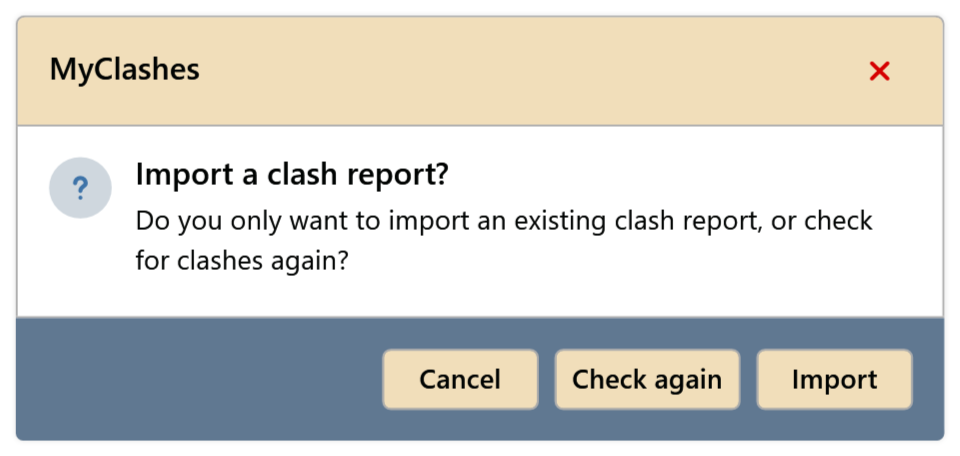
Fig. 1 · Import or check again Click Check again. The check runs; with many elements, this takes a few minutes.
The list shows each of your elements with a clash: No., Element (the category) and Clashes (how many elements it clashes with, links included).
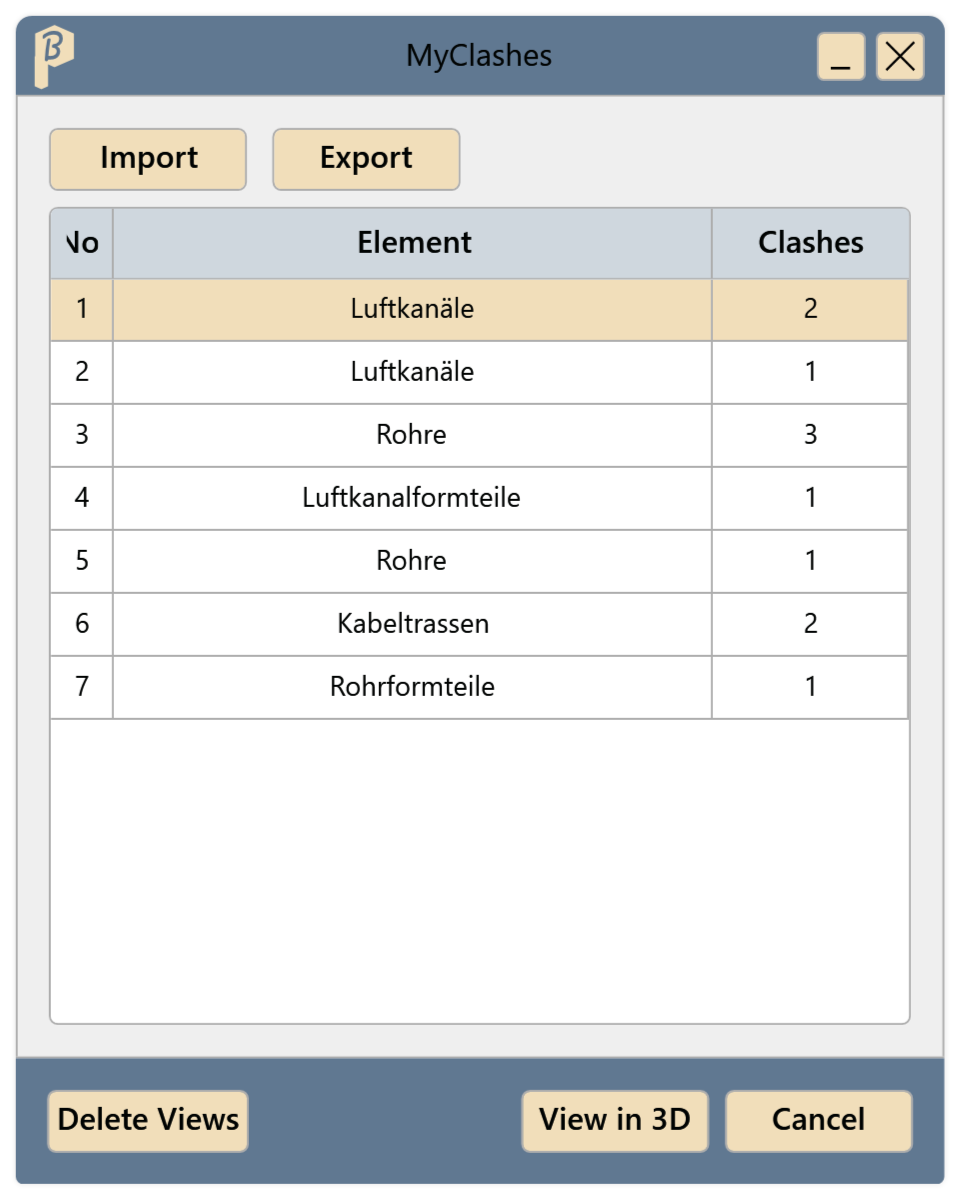
Fig. 2 · The MyClashes window Select one or more rows and click View in 3D, or double-click a row. For each clash, a 3D view “Clash No.n_user name” is created: your element in red, the clashing elements in green.
Fix the clashes. Then click Delete Views; this removes all your clash views.
A new check finds no more clashes and reports Nothing to check.
Save and import a report
In the MyClashes window, click Export (only when the list has entries). The report is saved as a JSON file; the message gives the path, and Open folder shows the file in Explorer.
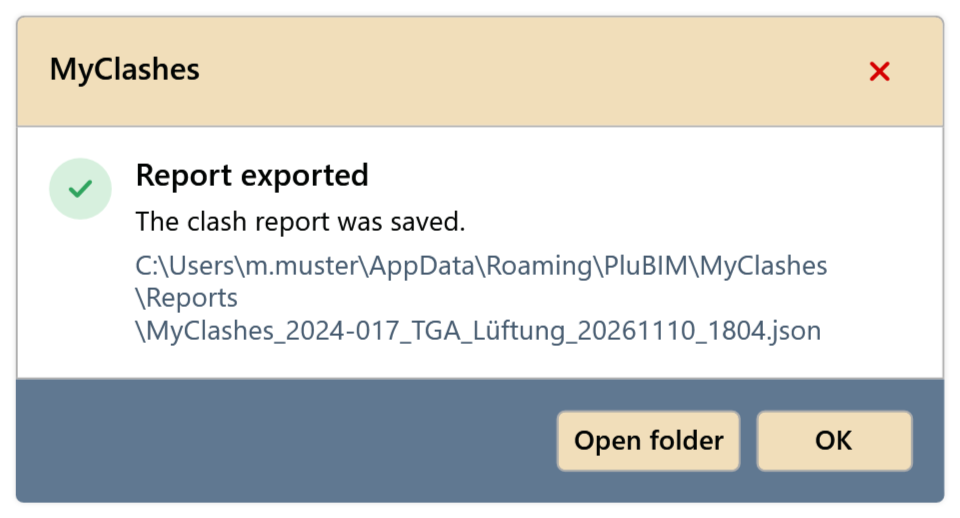
Fig. 3 · Report exported Later: start MyClashes and click Import at the question. The window opens empty.
In the window, click Import and choose the report. The list shows the saved clashes; View in 3D works as after a check.
The reports are stored under %AppData%\PluBIM\MyClashes\Reports and are named MyClashes_<model>_<YYYYMMDD>_<HHMM>.json.
What is checked
- Your elements: ducts, pipes, cable trays and conduits with fittings, accessories and insulation that you created or changed.
- Against: MEP and electrical elements as well as columns and beams, in the model and in loaded links.
- The 3D views are placed in the view group 400 Kollisionen.
Limitations
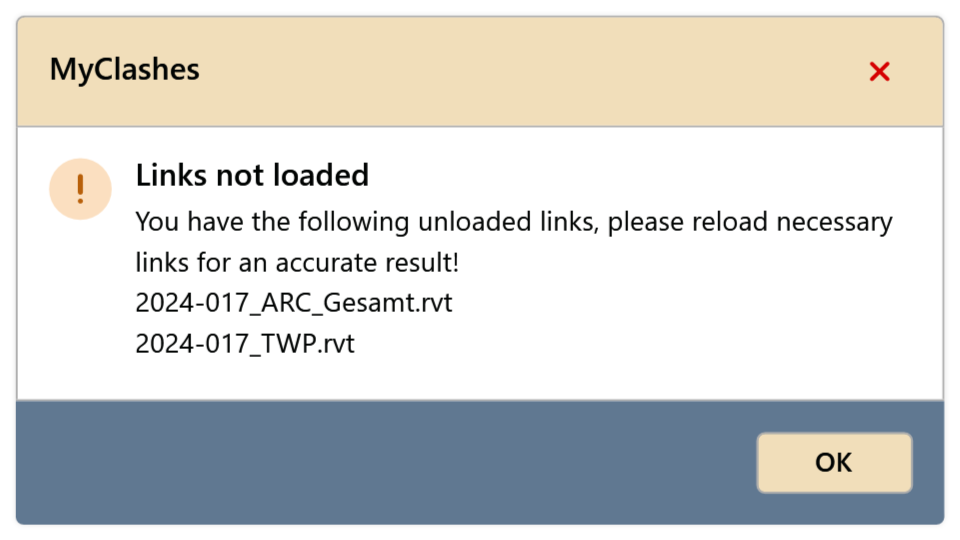
Links that are not loaded are not checked. MyClashes lists them after the check; for a complete result, reload them and check again.
- Walls, floors, roofs and other architectural elements are not checked, nor are mechanical equipment and plumbing fixtures.
- The message Nothing to check appears both when you have not edited any matching elements and when no clash was found.
Common problems
“You have the following unloaded links, …”
Reload the listed links via Manage Links and check again.
“The clash element could not be found in the current model.”
The imported report is out of date or belongs to another model; the element was deleted or is not in this model. Check again instead of importing.
“Could not delete the views”
Usually a clash view is the only open view. Open another view and click Delete Views again.
“Clash check failed” / “Import failed” / “Export failed”
The message gives the reason; Show details has more for support. When importing, check whether the chosen file is a MyClashes report.