 PluBIM Help

Archive Models
Automatically save selected models in an archive folder.
- Ribbon group
- Automation
- Version
- PluBIM 1.5.0
When to use it
- Project states should be backed up regularly without manual effort.
Archiving a Revit Server project once? ProjArchive is faster for that.
Set up the action
In NightShift, in the Action step, choose Archive Models.
Under Archive Settings, choose the target folder at Archive Folder.
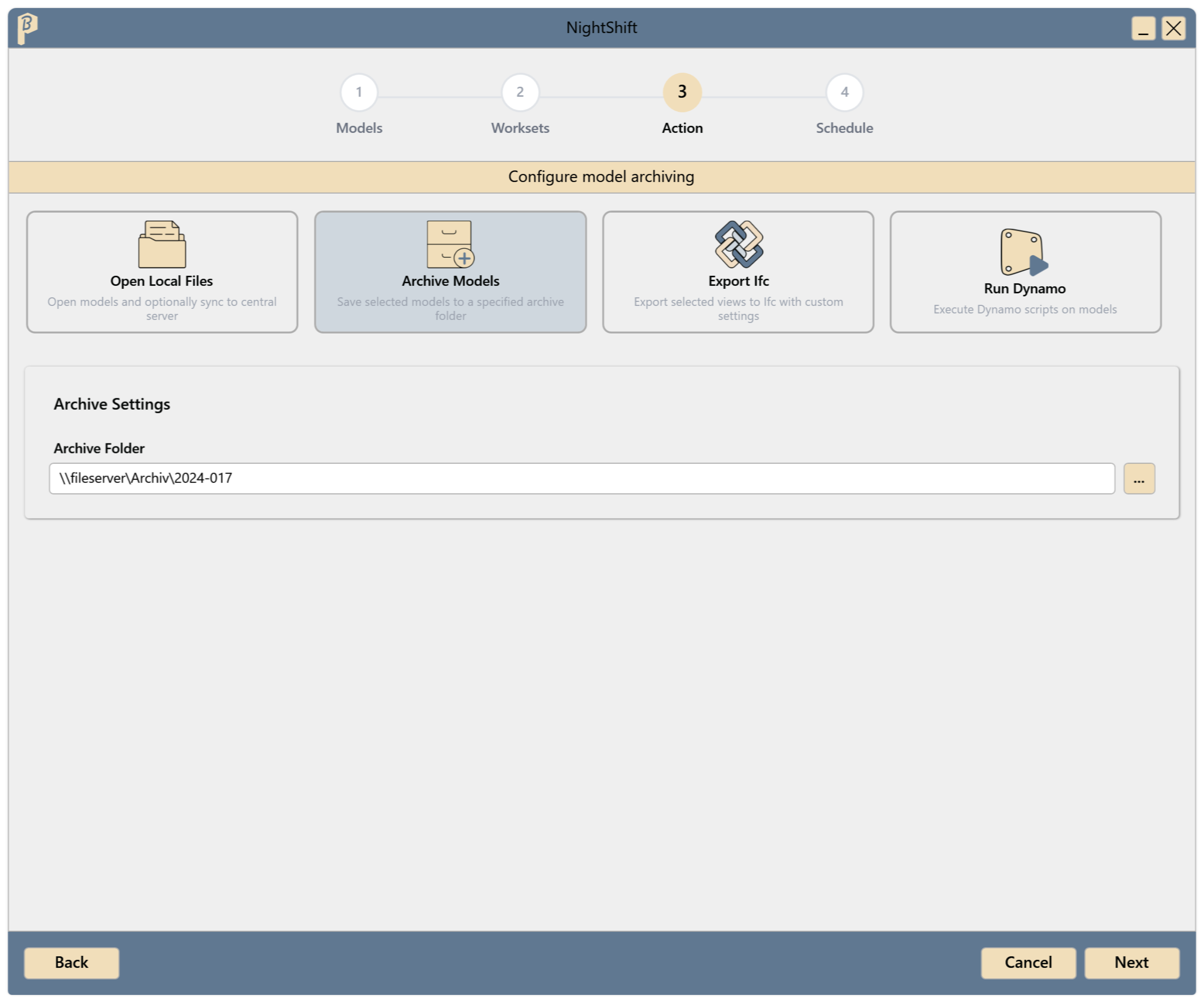
Fig. 1 · Archive Settings Continue with the Schedule step and save the job (Create a job).
At the scheduled time, each model is saved as its own file in the archive folder: <model name>_<YYYYMMDD>_<HHMM>_Archiv.rvt, for example TGA_Lüftung_20261110_0200_Archiv.rvt. If the name already exists, _1, _2 … is added. The time in the name is in UTC. An existing archive is never overwritten.
Result of the run
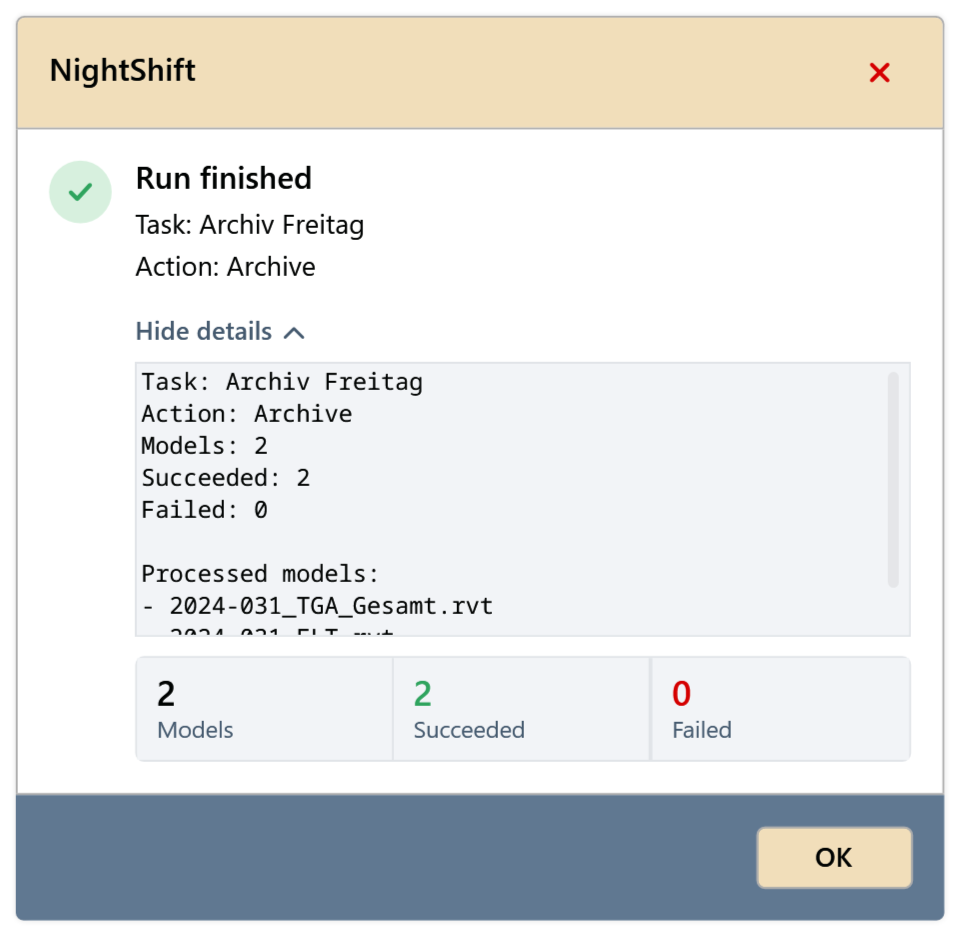
After each run, NightShift shows a summary with the number of archived and failed models. Where the archive copies are is shown in the JobManager under Models.
Common problems
“Select an archive folder.”
Specify an Archive Folder.