 PluBIM Help

GridCoords
Write grid coordinates into selected elements.
- Ribbon group
- Data
- Version
- PluBIM 1.5.0
GridCoords writes the grid field each element of the chosen categories sits in, e.g. “C3”, into that element. The value is made from the names of the two grid lines that intersect at the chosen corner of the grid field.
When to use it
- Elements should get their grid position as a parameter value.
Requirements
- The chosen categories have a Text parameter for the grid coordinate.
- The model or a linked model contains grids.
Write grid coordinates
In the ribbon, click PluBIM › Data › GridCoords.
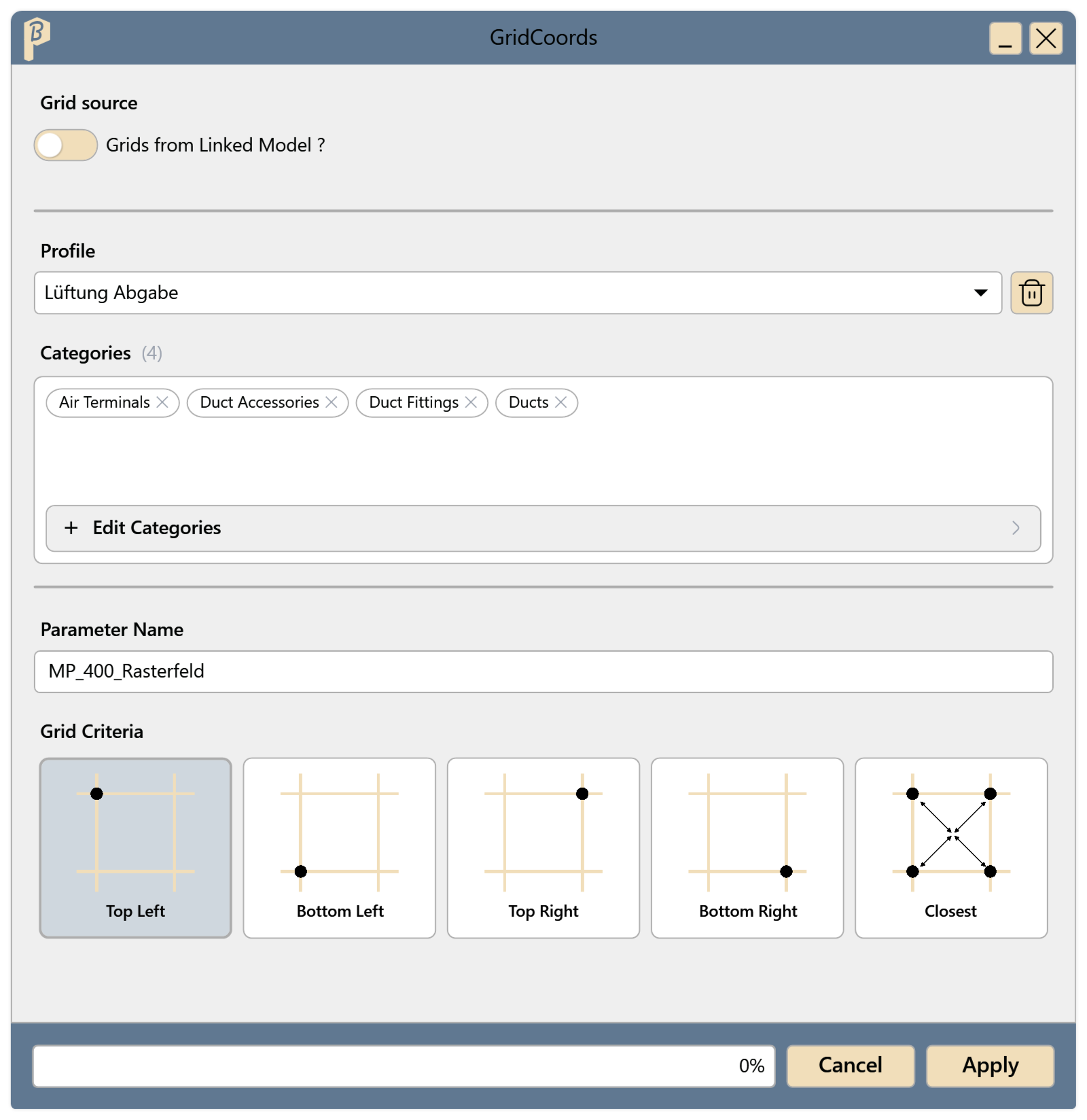
Fig. 1 · The GridCoords window If the grids are in a linked model, turn on Grids from Linked Model ? and choose the model under Linked Model.
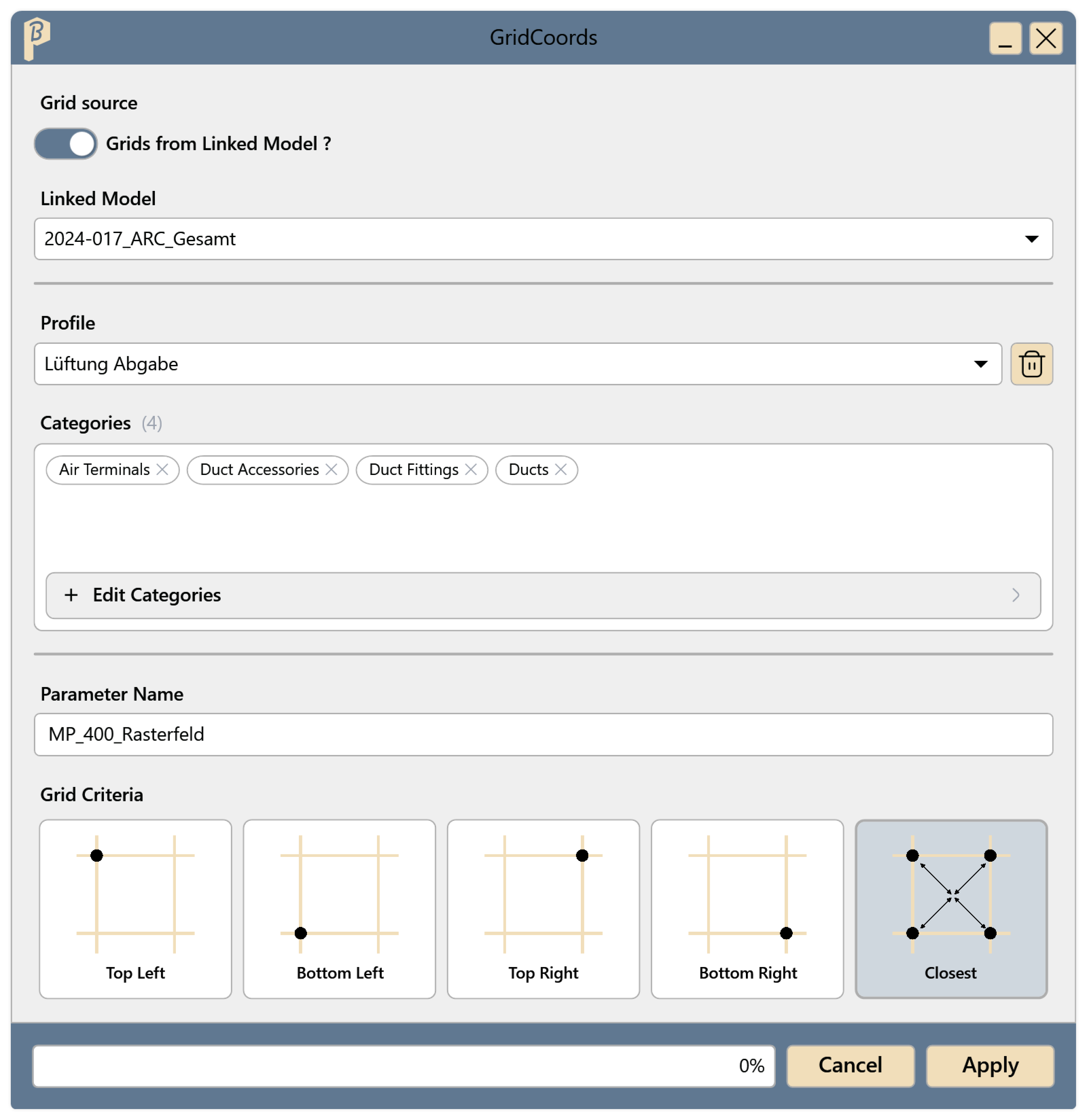
Fig. 2 · Grids from a linked model, Closest Choose a profile under Profile. Profiles and Edit Categories work as in RoomData.
At Parameter Name, enter the name of the text parameter to write to.
Under Grid Criteria, choose which grid intersection is used:
- Top Left, Bottom Left, Top Right or Bottom Right: the matching corner of the grid field the element sits in.
- Closest: the grid intersection closest to the element.
Click Apply. The progress is shown at the bottom of the window.
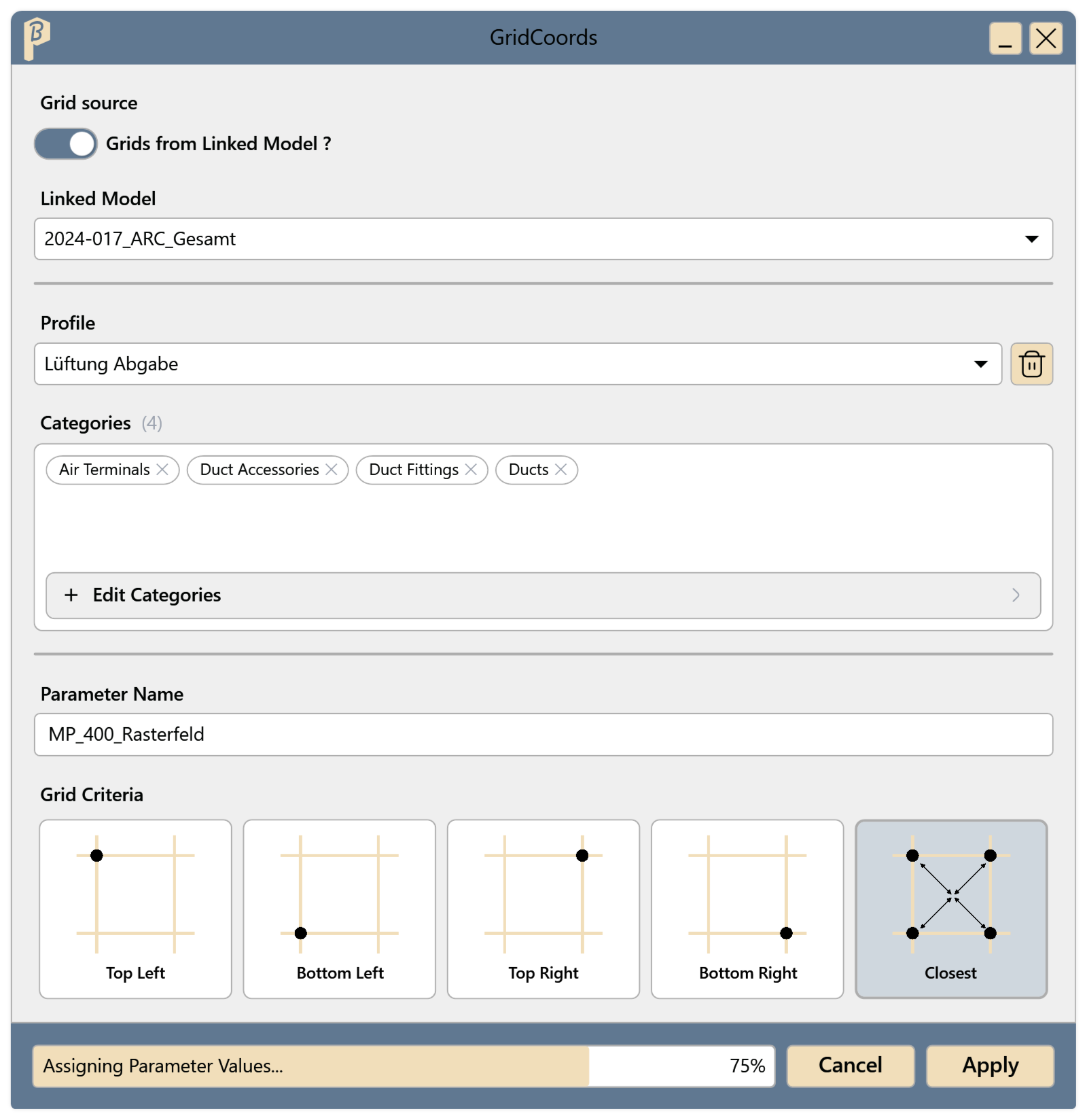
Fig. 3 · GridCoords is running
Each element of the chosen categories has the grid coordinate in the chosen parameter. Only values that change are written. Elements GridCoords could not change are shown in a list afterwards (see Skipped elements). In Revit, Undo takes back the whole run in one step.
Skipped elements
If GridCoords cannot change single elements, all others still get their values. Afterwards, GridCoords shows the skipped elements in a list:
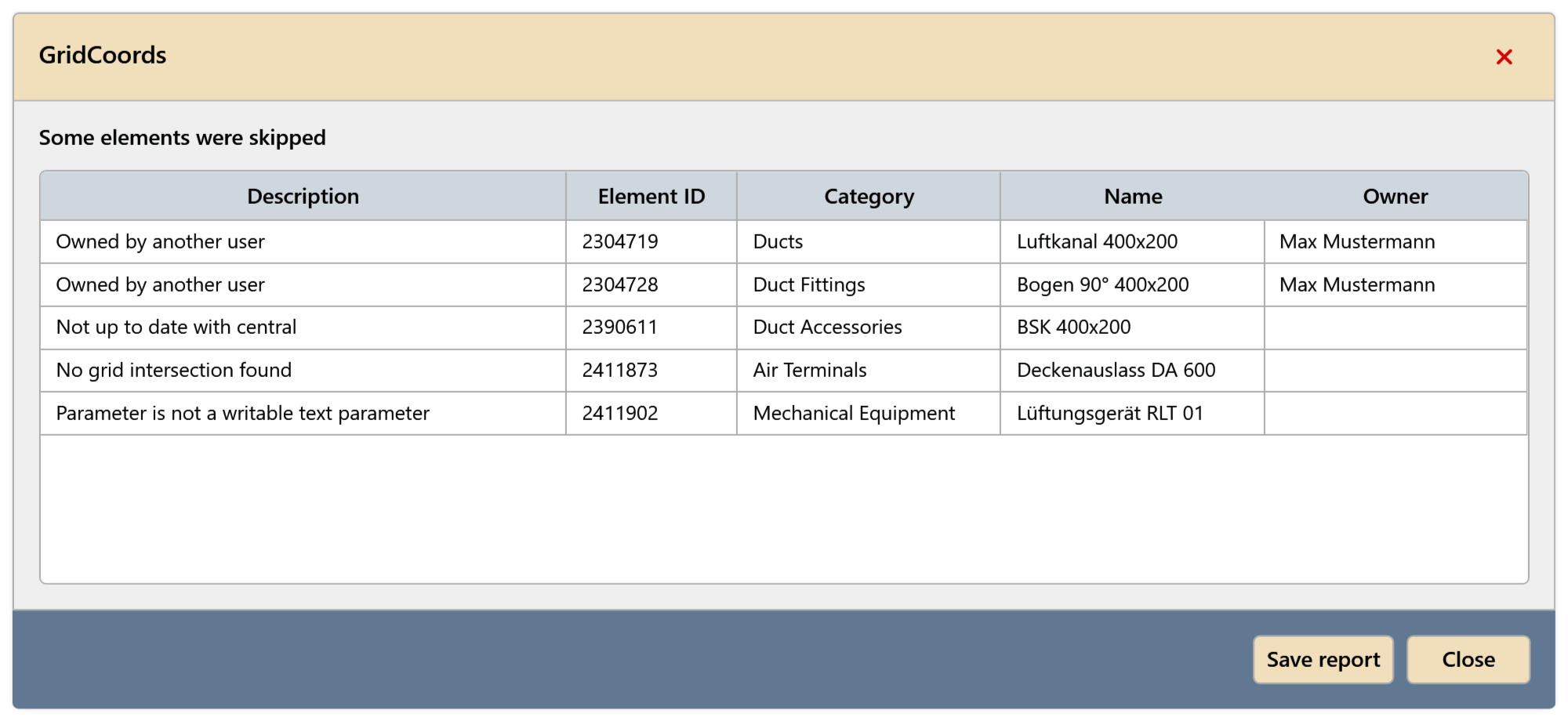
The Description column gives the reason, next to it are the element's Element ID, Category, Name and Owner. Save report saves the list as an Excel file, e.g. to pass it on to the owners.
| Description | Meaning and fix |
|---|---|
| Owned by another user | In workshared models, GridCoords borrows only elements whose value changes. Ask for the element to be released and run GridCoords again. |
| Not up to date with central | Sync with the central model and run GridCoords again. |
| No grid intersection found | The element is outside the grid. An existing value is kept. |
| No bounding box | The element has no geometry from which its position can be determined. |
| Parameter not found | The element does not have the parameter. Check the name, including upper and lower case. |
| Parameter is not a writable text parameter | The parameter is not a text property or is read-only. Choose a text parameter. |
Limitations
- Elements outside the grid get no value; an existing value is kept.
- The parameter must be a writable text parameter. Elements without it are listed in the list.
Common problems
The Parameter Name field is marked red
Apply was clicked without a Parameter Name. Enter the name of the text parameter.
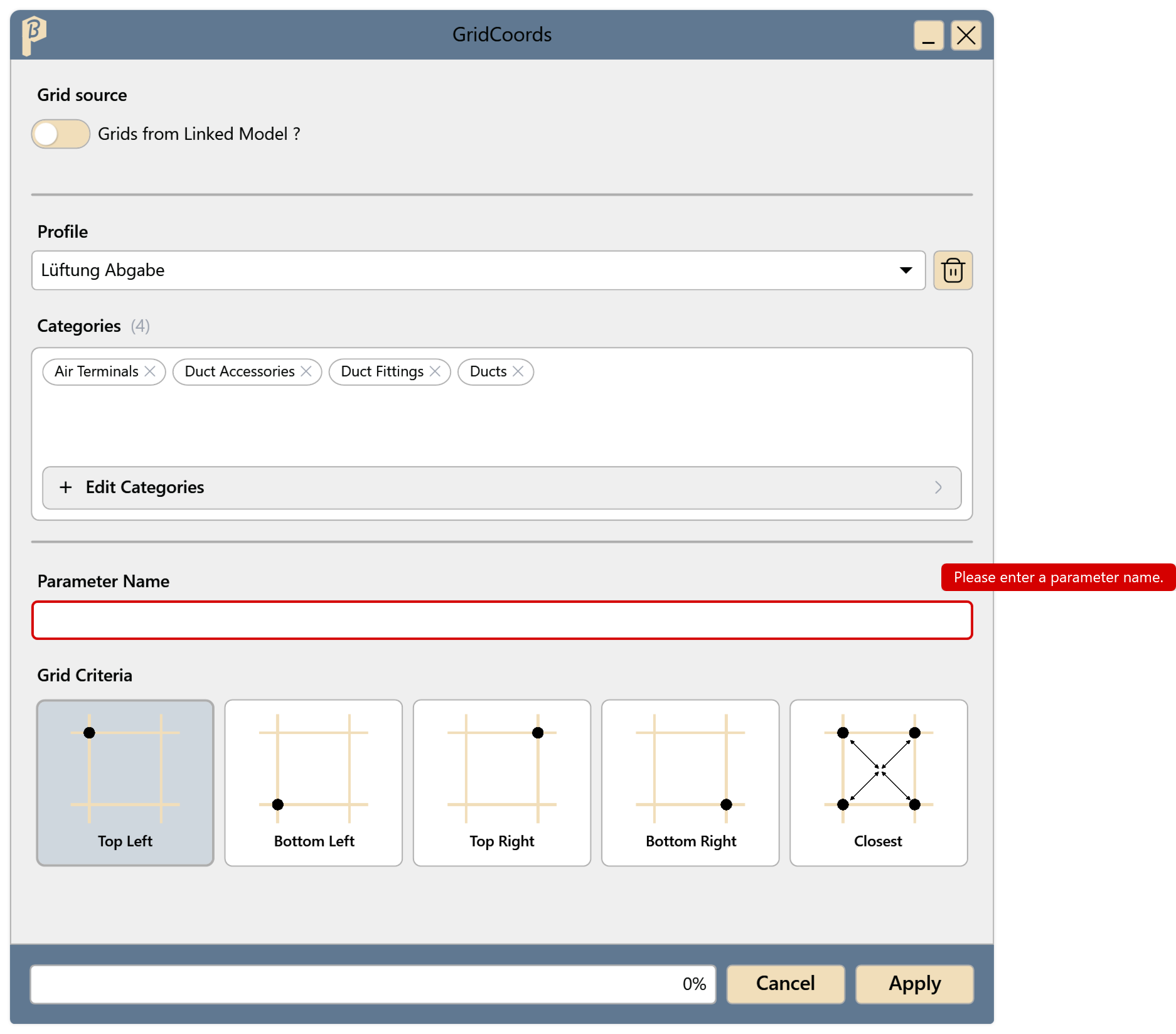
“Select at least one category.” / “Select a linked model.”
Apply was clicked without a category, or with Grids from Linked Model ? on but no model chosen.
Some elements have no value
The reason is in the list of skipped elements, e.g. “No grid intersection found” or “Parameter not found”.
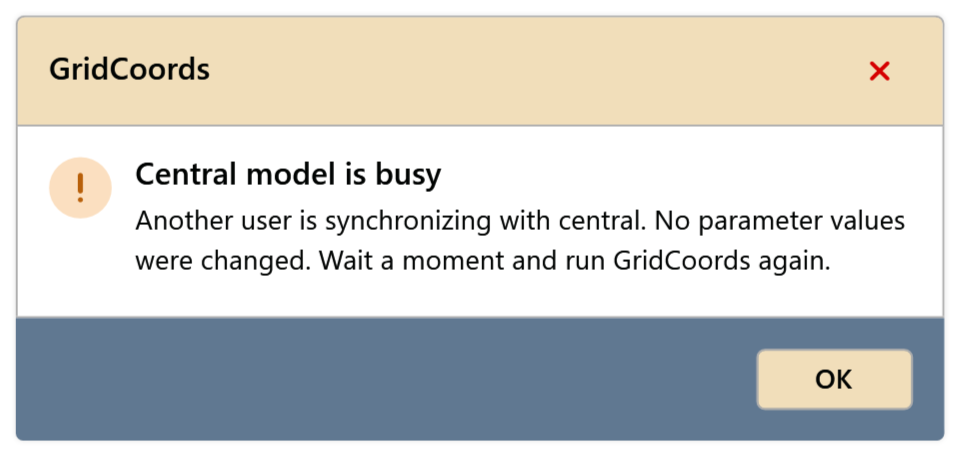
“Central model is busy”
Someone else is syncing with the central model right now. GridCoords has not changed anything. Wait a moment and start GridCoords again.