 PluBIM Help

Detailed mode
Check whether the elements reference the right level according to the project rules and all required levels are defined; surfaces without a matching level are reported.
- Ribbon group
- Quality
- Version
- PluBIM 1.5.0
In Detailed mode, every floor and roof of the linked model counts until you deliberately ignore it. The ignore list is saved in the project, per linked model, and applies to all later runs. If you only need to know whether the elements are referenced correctly according to the project rules, Simple mode is enough.
When to use it
- Whenever you want to check whether the elements reference the right level according to the project rules and all required levels are defined, for example before an issue. A floor without a matching level appears as a result instead of being skipped.
- When gratings, ramps, landings or shaft covers distort the result.
Requirements
As in the overview. To ignore surfaces, the linked model must have a stable identifier; otherwise LevelGuard reports that ignored elements cannot be stored.
Check reference levels (Detailed)
In the ribbon, click PluBIM › Quality › LevelGuard.
Under MODEL, choose the linked architectural model.
Under RUN SETTINGS, choose Detailed. The Ignored floors / roofs row shows how many surfaces are already ignored for this model; Edit opens the list.
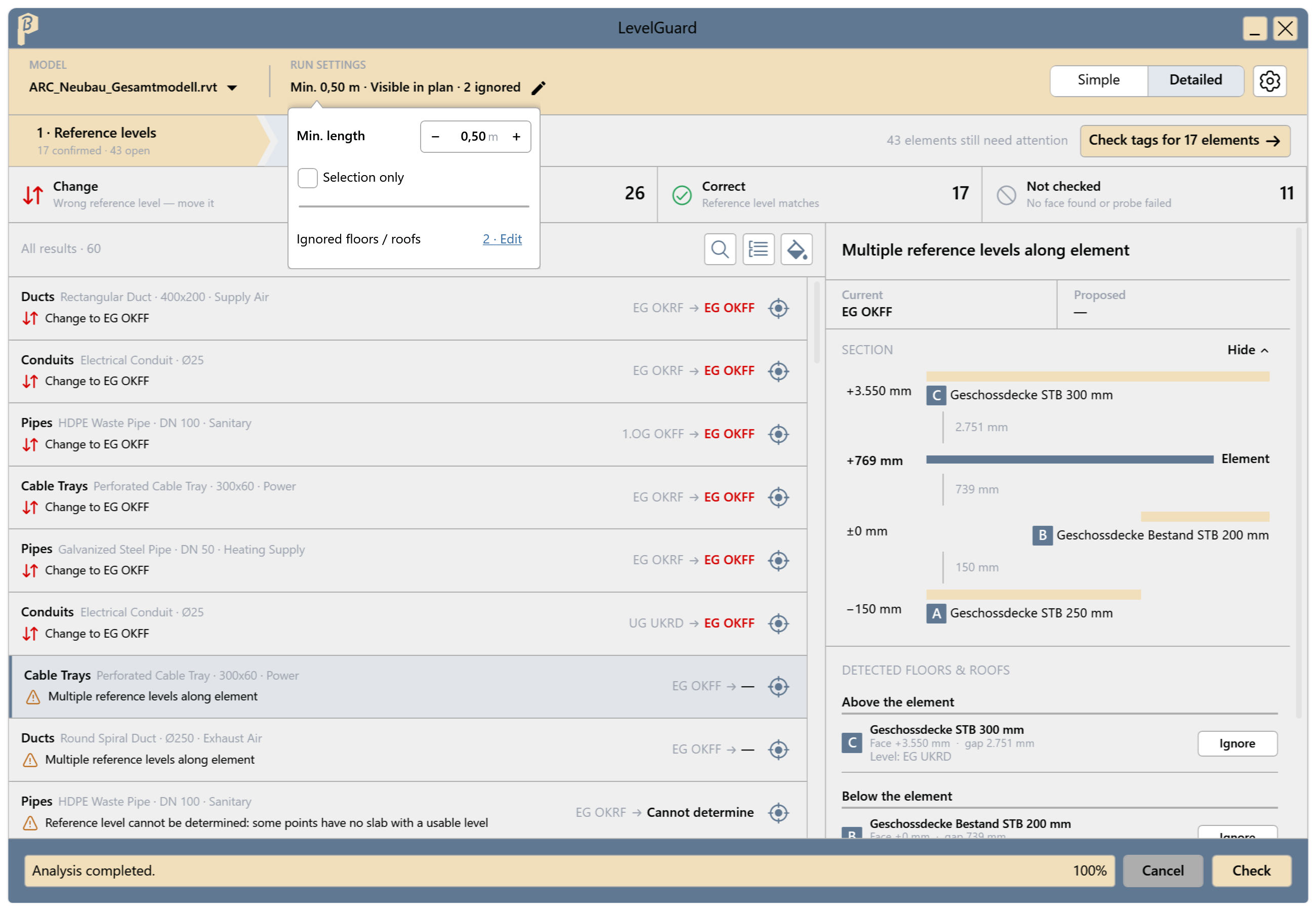
Fig. 1 · LevelGuard in Detailed mode Optionally set Min. length and Selection only, then click Check.
Go through the results. For Review and Change, the SECTION shows which floors and roofs were found above and below, and at what distance.
Move the elements in Revit or ignore disturbing surfaces and click Check again.
All elements are under Correct, or the remaining cases have been checked and justified.
Ignore surfaces
Select a result. Under DETECTED FLOORS & ROOFS are the surfaces Above the element and Below the element.
Click Ignore next to the disturbing surface. From the next run on it is skipped, and it is marked Ignored.
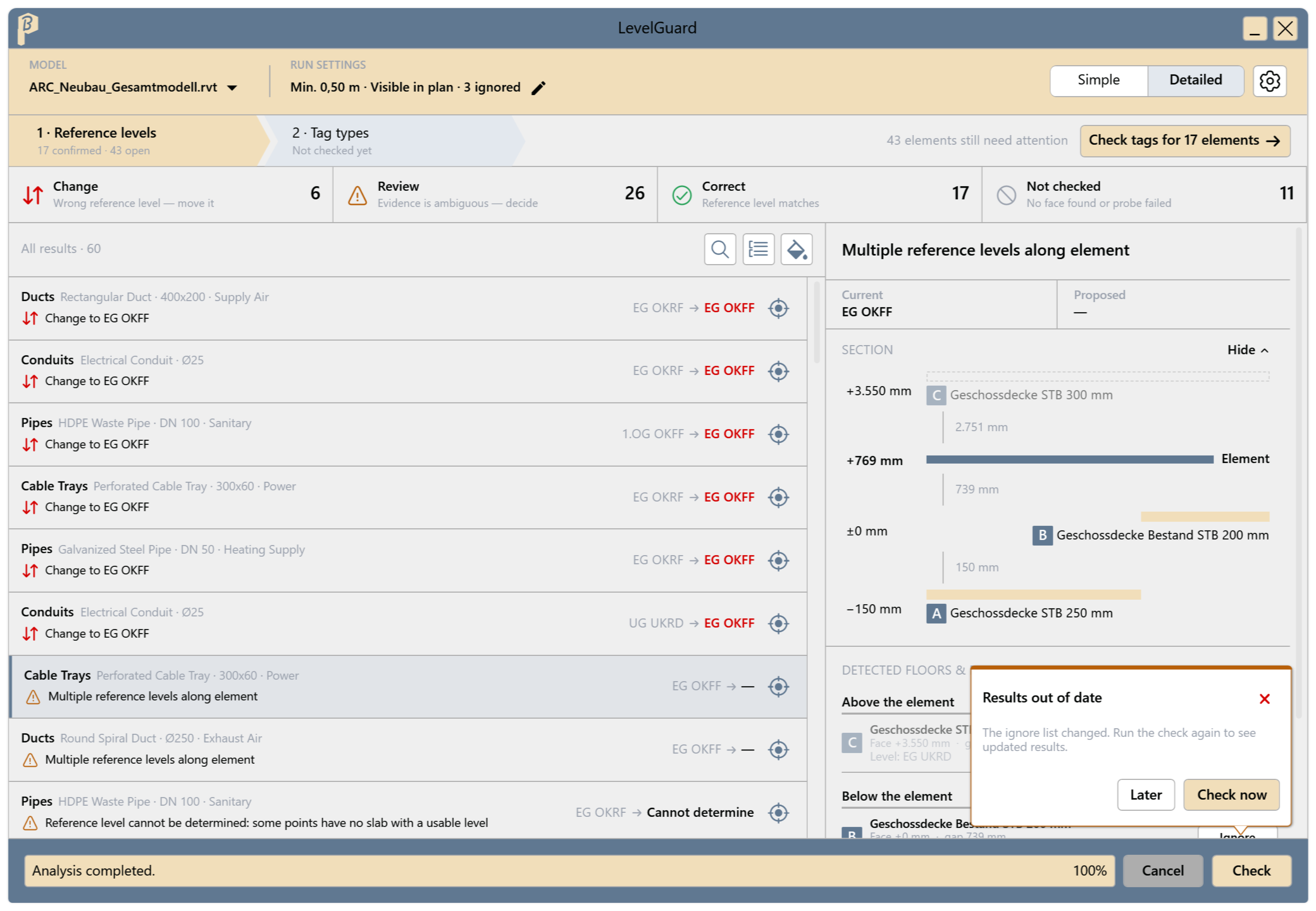
Fig. 2 · After Ignore: the surface is grayed out, LevelGuard reports Results out of date LevelGuard reports Results out of date because the ignore list has changed: click Check now.
Manage ignored surfaces: in the project settings, on the Ignored surfaces page, choose the model, search for a surface and bring it back with Consider again. Undo reverts this before you apply.
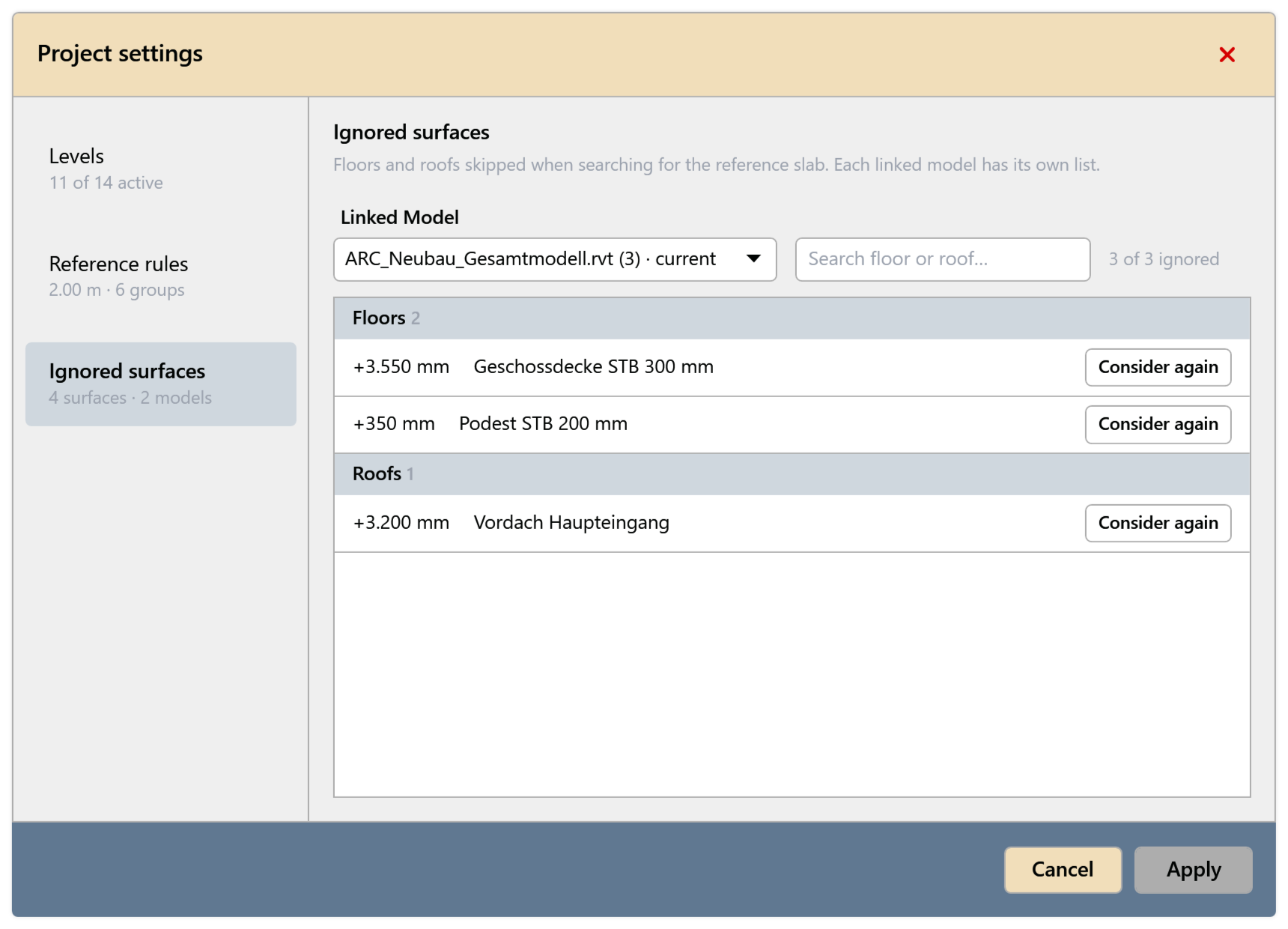
Fig. 3 · Ignored surfaces page
Only ignore surfaces that should not serve as a reference, e.g. gratings, ramps or shaft covers. An ignored surface is skipped for all elements, not only for the selected one.
Common problems
“Surface not ignored”
The project is read-only, or the LevelGuard list is owned by another user or not up to date with central. Synchronize and try again.
“Multiple reference levels along element” or “Variable slab-face elevation”
The element runs over slabs of different heights. Split the element at the slab edge or deliberately leave the result under Review.