 PluBIM Help

ProjArchive
Archives Revit Server projects with all their models.
- Ribbon group
- Automation
- Version
- PluBIM 1.5.0
ProjArchive saves all models of a project folder on the Revit Server as copies in an archive folder. The server's folder structure is kept in the archive.
When to use it
- A project on the Revit Server is finished and should be backed up with all its models.
- A project state is filed for a milestone.
Regular, automatic archiving of single models? Use the NightShift action Archive Models for that.
Requirements
- Access to the Revit Server (in the company network or via VPN).
- Revit is open in the version of the models. Older models would be upgraded to the version of the running Revit when opened and archived that way.
- Write access to the archive folder.
The window
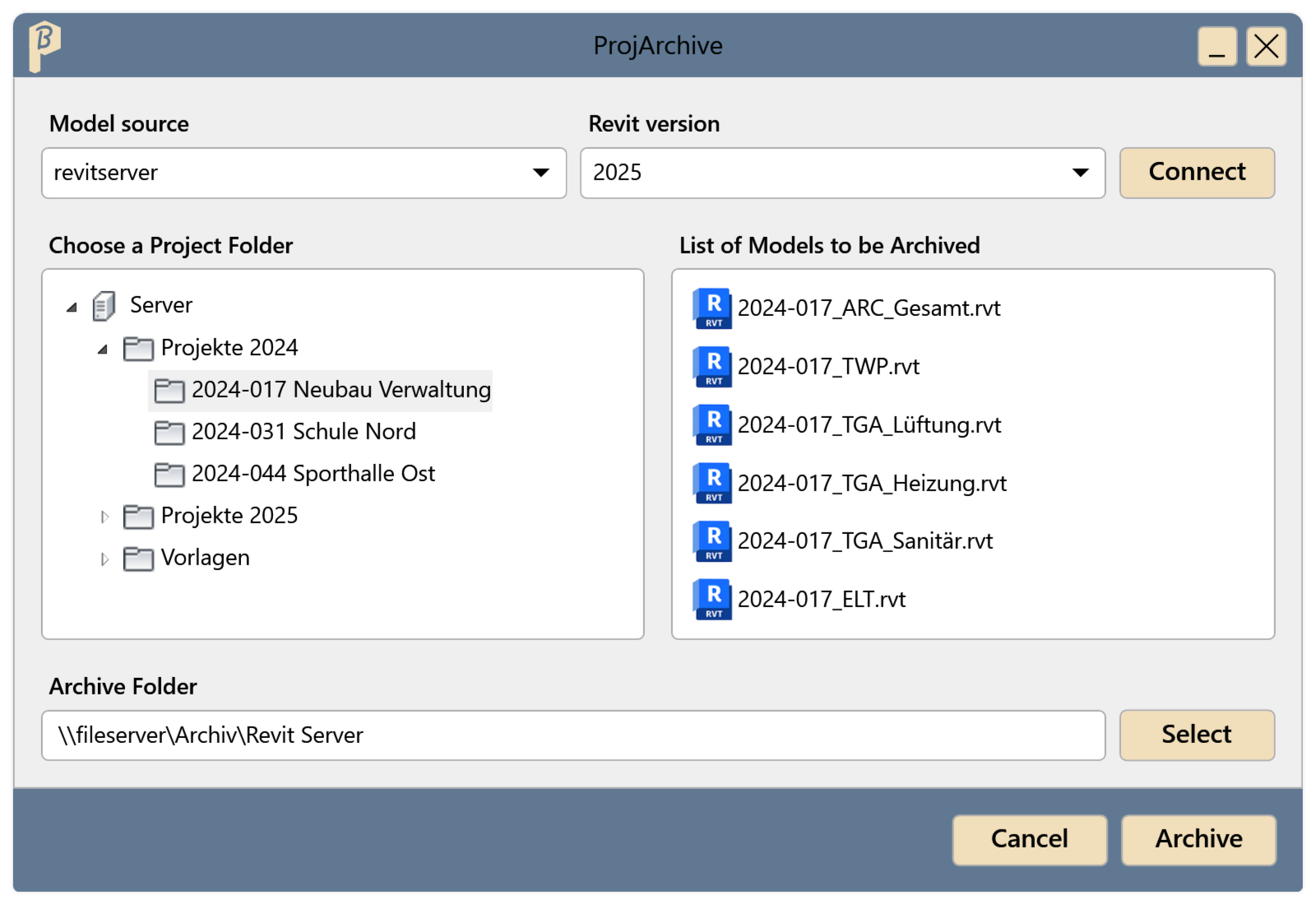
- At the top: Model source (the Revit Server), Revit version and Connect.
- On the left under Choose a Project Folder, the server's folders: first the top-level folders, below them the project folders.
- On the right, the List of Models to be Archived: all models of the chosen project folder, including those in its subfolders.
- At the bottom, the Archive Folder where the copies are saved.
Archive a project
In the ribbon, click PluBIM › Automation › ProjArchive.
Choose the Revit Server under Model source and the version of the models under Revit version, then click Connect.
On the left, expand the Server entry, then the folder that contains the project.
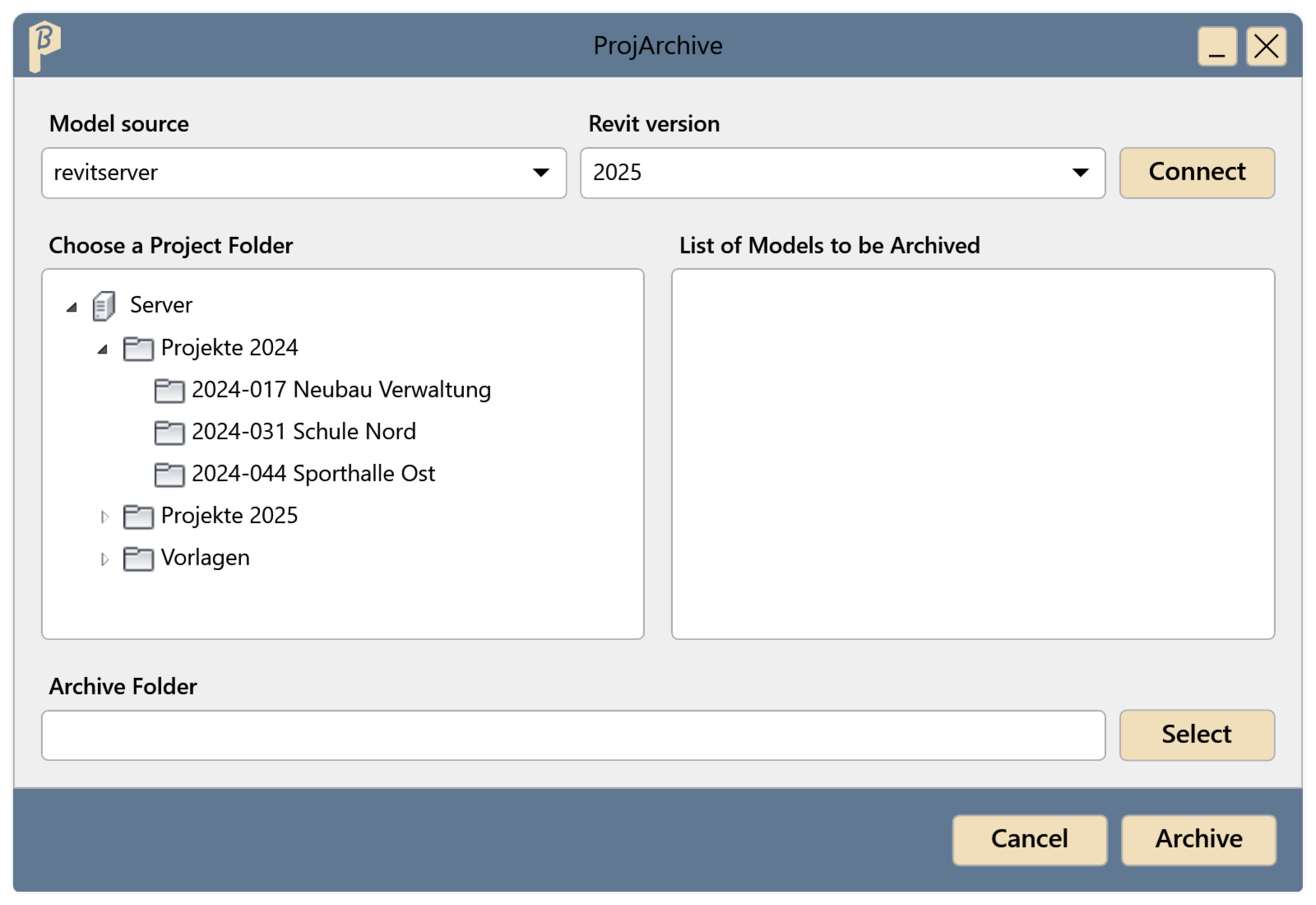
Fig. 2 · Connected: folders and project folders Click the project folder. All models that will be archived appear on the right.
Enter a folder at Archive Folder or choose one with Select.
Click Archive. Revit opens the models one after another and saves them to the archive. Revit is busy in the meantime; depending on the size and number of models, this can take a while.
The archive folder contains the server's folder structure, e.g. Projekte 2024\2024-017 Neubau Verwaltung\, with one copy per model. The file name is the model name with the current date: 2024-017_TGA_Lüftung_20261110_Archiv.rvt. When Revit responds again, archiving is finished; no message appears.
What happens during archiving
- All models in the list are archived. Single models cannot be deselected; to back up only some models, use the NightShift action Archive Models.
- Each model is opened detached from the central model, without audit and with worksets closed. The copy is saved as its own central model and then closed.
- The model on the Revit Server is not changed.
Limitations
- Revit Server projects only; ProjArchive does not archive models in Forma (BIM 360/ACC).
- If an error occurs with a model, the following models are no longer archived. The message Archiving failed gives the reason.
Common problems
“Select a save folder.”
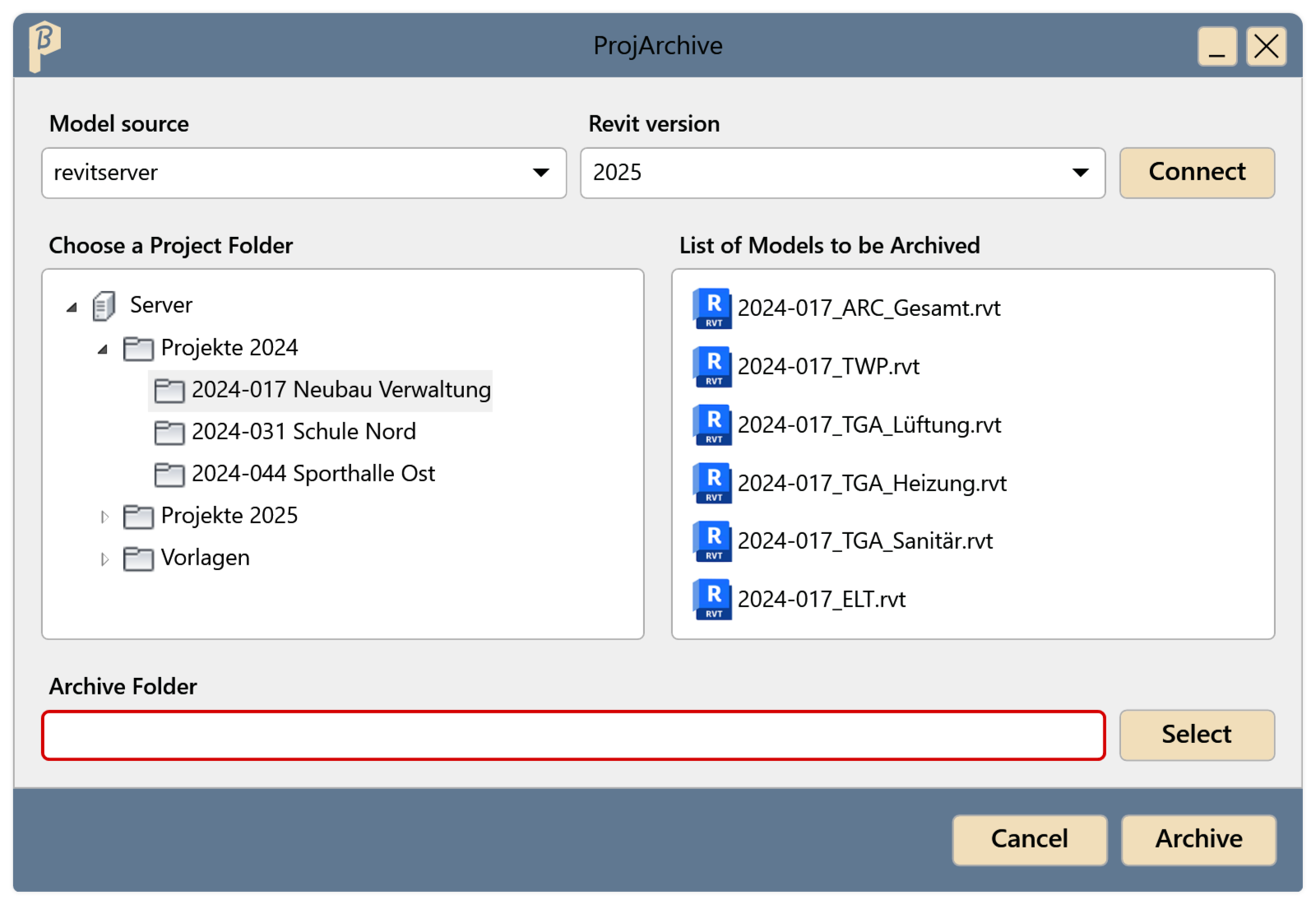
The Archive Folder field has a red border; the message appears when you point at it or click into it. Specify a folder, then click Archive again.
“Select at least one model to archive.”
The model list is empty. Click a project folder on the left. A top-level folder shows no models; only the project folder below it does.
“Select a model source.” / “Select a Revit version.”
Choose the Revit Server and the Revit version before Connect or Archive.
“Could not connect to the server”
The Revit Server cannot be reached, or the chosen Revit version is not set up on the server. Check the network or VPN, check the Revit version and click Connect again. If that does not help, contact support.
“Could not read the folder”
A folder on the server could not be opened, e.g. because the connection was interrupted. Click Connect again and expand the folder once more.
“Archiving failed”
A model could not be opened or saved. Common reasons: the copy with today's date is already in the archive, write access to the archive folder is missing, or the model was saved with a newer Revit version. The models before it are archived. A new run on the same day stops at the first model that is already archived; move the copies made before or choose another archive folder.